
Redact a PDF on iPhone so the text is really gone
To redact a PDF on an iPhone so the words are actually removed, open it in Kyneto PDF, tap All tools, choose Redact, drag a box over what has to go and tap Black out. The boxed pages are rewritten and the hidden text is deleted from the file. A black rectangle drawn with Markup looks the same on screen, but the text underneath is still there for anyone who selects, copies or searches it.
That difference is why "redact pdf not working" is one of the things people type after their first attempt. The box was drawn; the redaction never happened.
What the iPhone can do on its own
Markup is in Files, Mail, Photos and, since iOS 26, the Preview app. Apple's guide describes adding a shape and setting its fill colour and opacity, so you can put a solid black rectangle over a name in about ten seconds. What you have added is an annotation that sits on top of the page. The text in the page itself is untouched.
Preview on iPhone fills forms, annotates, adds and deletes pages, crops, locks and exports PDFs. Apple's iPhone User Guide for Preview, in both its iOS 26 and iOS 27 editions (checked on 2026-11-10), has no redaction topic. Preview on the Mac does have a Redact tool; if you have a Mac to hand, that is a perfectly good built-in option. On the iPhone, it is not there.
There is one built-in workaround that is genuinely safe: draw the black box, take a screenshot of the page and send the screenshot. A screenshot is a picture, so it carries no text at all. It is also one page at a time, at screen resolution, and it is no longer a PDF.
Redact a PDF on iPhone, step by step
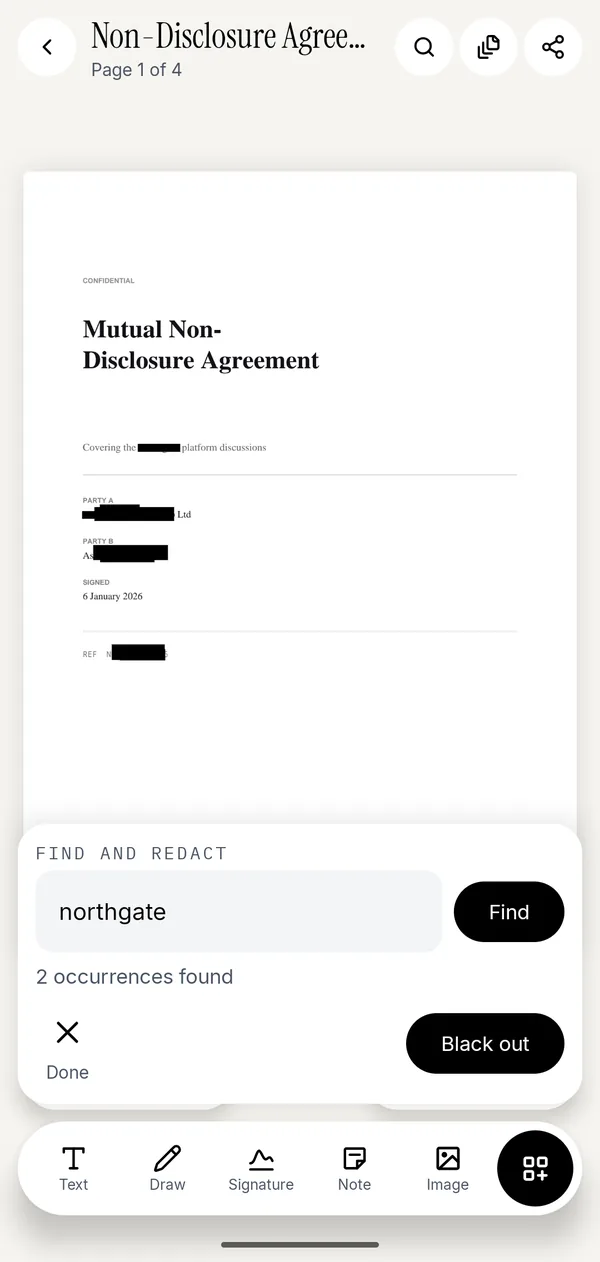
- Open the PDF in Kyneto PDF with Open PDF File, or share it from Files or Mail to the app.
- Tap All tools, then Redact under Protect.
- Drag a box over each name, number or address you want removed.
- Type a repeated word into Word or number to hide and tap Find to box every occurrence.
- Tap Black out and confirm the warning.
- Tap the share icon and choose Save to device or Share.
Nothing is applied until you tap Black out, so lay out every box first and check each page. Tap a box to adjust it or delete it if you caught the wrong line.
Find and redact searches the text in the document. A scan made with a camera has no text to search, so on a scan either drag the boxes by hand or run Make Searchable (OCR) first and then use Find.
What happens to the page
The app is explicit about the trade, because it is a real one. The pages you boxed become images:
- The hidden text is gone from the file. Selecting, copying and searching cannot bring it back.
- The rest of the text on those pages stops being selectable too, because the whole page is now a picture.
- Once you save or share the file, it cannot be undone. Keep the original if you might need it.
Pages you did not box are left as they were. Blacking out one account number on page three does not flatten the other twenty pages. If you need the redacted document searchable again, run Make Searchable (OCR) afterwards; the removed words are not in the new text layer, because they are no longer on the page.
The guide to blacking out text goes deeper into why drawn rectangles leak and which details people most often forget to hide.
Check it before you send it
Test the exported copy, not the one on your screen:
- Open it in Preview, tap Search and type the word you removed. No match is what you want.
- Touch and hold where the text was. If a selection appears, something is still underneath.
- Look at headers and footers. A reference number printed on every page needs boxing on every page, which is what Find and redact is for.
- Rename the file. Redaction works on the page; a file called "J Smith passport" gives the game away by itself.
What this does not do
Redaction works on what is printed on the page. It does not clean a PDF's metadata (author, title, creation app), and it does not touch comments other people left in the file. It also cannot open a password-protected PDF without its password; once you have opened it, you can remove the password from the copy you share.
Questions people ask
Can you redact a PDF on iPhone for free?
Not as a true redaction using only Apple's apps, since Markup covers the text rather than removing it. Kyneto PDF is free to download and Redact can be used straight away; the free tier limits how many documents you can export, and a weekly or yearly subscription removes that limit. There is no account.
Does the Preview app on iPhone have a redact tool?
No. Apple's iPhone guide for Preview, in its iOS 26 and iOS 27 editions, lists no redaction feature. Preview on the Mac has one.
Why is my PDF redaction not working?
Usually because it is a drawn shape or a black highlight, not a redaction. If you can still select, copy or search the text under the box, the words are in the file.
Is a black box in Markup safe for sharing?
Only if you flatten the page into an image afterwards, for example by sending a screenshot. As a PDF annotation, the black box hides the text visually and leaves it in the document.
Does Kyneto PDF upload my document to redact it?
No. Redaction runs on the iPhone, with no account and no server involved, and it works with the phone offline.
Free to download. No account, nothing uploaded.