
Combine PDF files on iPhone, in the order you want
To combine PDF files on iPhone without an app, open Files, go to the folder that holds them, tap the More button (three dots), tap Select, tick the PDFs, then tap More again and choose Create PDF. Files writes one new PDF in the same folder and leaves the originals alone. What it does not give you is a step to set the order. If the order matters, use Kyneto PDF's Merge PDFs, where you drag the files into place before anything is written.
The Files app: Create PDF
Create PDF is the quickest built-in way to join two or three PDFs, and it is free. Its limits are worth knowing before you send the result to anyone:
- No ordering screen. Files decides the order itself. Guides that have tested it report that it follows the files' names, so the usual workaround is to rename them first ("1 contract", "2 annex", "3 ID") and check the merged file before sending it.
- Everything has to be in Files. A PDF sitting in Mail or WhatsApp needs to be saved to Files first, and the job is easiest when all the parts sit in the same folder.
- It also works on images. Touch and hold a photo saved in Files, tap Quick Actions, and Create PDF turns it into a PDF. The photo guide covers the other built-in ways.
The Preview app, from iOS 26
iOS 26 brought Apple's Preview app to iPhone, and its page thumbnails can add another file to the one you have open. Open the first PDF in Preview, tap the page count to show the thumbnails, touch and hold a thumbnail and tap Insert from File to bring in another PDF or an image. To fix the order, touch and hold a thumbnail and drag it above or below another.
That gives you full control over the order, page by page. It is slower than Create PDF for more than two files, because you insert them one at a time.
Merging with a shortcut
Shortcuts has a Make PDF action that joins the files it is given into a single PDF, and the "merge PDF" shortcuts shared online are built around it. It is worth setting up if you merge the same kind of documents every week and want it in the share sheet. For an occasional job, Files or an app is quicker than building one.
Merge PDFs in Kyneto PDF
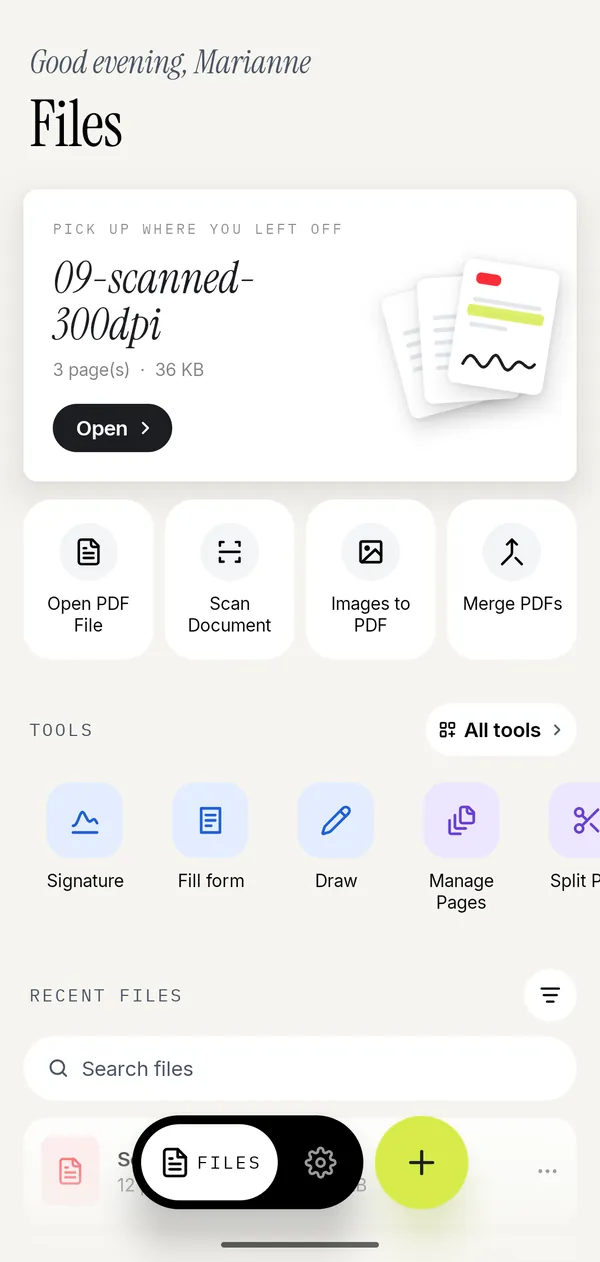
- Open Kyneto PDF and tap Merge PDFs on the home screen.
- Tap Add Files and pick the PDFs in the Files picker. You can select several at once.
- Drag each file by its handle into the order you want. The list order is the page order.
- Tap Merge. The combined document opens in the editor.
- Tap Share to send it, or Save to device to keep it in Files.
The header above the list shows how many files and pages you are about to combine, which is a cheap way to notice that one attachment is missing. Merging copies the pages as they are, so nothing is re-compressed on the way through, and it all happens on the phone with no upload.
Mixing photos and PDFs
Merge PDFs takes PDFs. To get photos into the same document there are two routes:
- Turn the photos into a PDF first with Images to PDF on the home screen, then merge that file with the others.
- Or open the PDF, go to Manage Pages, select the page the photos should sit next to, tap Insert and choose Images before selected page or Images after selected page.
Manage Pages also has a dashed Merge PDFs tile at the start and the end of the thumbnails, which adds another PDF's pages to the front or back of the document you have open. If a scanned page went in sideways, rotate it there too.
Things that trip people up
- A password-protected PDF will not go in. Merge PDFs reports that the file could not be added. Open it with its password first and use Remove Password; the password guide has the details.
- The result is too big to email. A merge of three scans adds up fast. Compress PDF → Target File Size takes the limit in megabytes; see compressing a PDF on iPhone.
- Mixed page sizes. An A4 page and a Letter page stay their own sizes after merging. Trim the odd one with Crop pages if it bothers you.
Questions people ask
How do I merge PDFs on iPhone for free?
Use Create PDF in the Files app: select the PDFs, tap More, then Create PDF. Kyneto PDF is free to download and every tool can be used; the free tier limits how many documents you can export, and a weekly or yearly subscription removes the limit.
How do I combine 2 PDFs on iPhone?
Select both in Files and choose Create PDF, then check which one came first. In Kyneto PDF, add both in Merge PDFs, drag them into order and tap Merge.
Can I choose the order when merging in Files?
Not on screen. Files picks the order itself, so rename the files to control it or fix the page order afterwards in Preview's thumbnails.
Is there a shortcut to merge PDFs on iPhone?
Yes. Shortcuts' Make PDF action combines the files it receives into one PDF, and you can run a shortcut built on it from the share sheet.
Can I merge a password-protected PDF?
Only after its password is removed, which needs the password. Open it in Kyneto PDF, type the password, use Remove Password, then merge the unlocked copy.
Are my files uploaded when I merge them?
Not in Kyneto PDF. The merge runs on the phone, with no account, and works with no connection.
Free to download. No account, nothing uploaded.