
Convert photos to PDF on iPhone, with or without an app
To convert a photo to PDF on iPhone without an app, open it in Photos, tap Share, choose Print, then pinch outward on the print preview. The preview opens full screen as a PDF; tap Share again and choose Save to Files. Select several photos first and they come out as one multi-page PDF. If you need A4 or Letter pages with a margin, a specific order, or a file under an upload limit, Kyneto PDF's Images to PDF does it on the phone.
Three ways that are already on your iPhone
1. The Print trick, from Photos
This is the one most people never discover, because nothing on screen says "PDF".
- In Photos, select one or more photos and tap Share.
- Scroll down the list of actions and tap Print.
- Put two fingers on the page preview and spread them apart. The preview opens full screen.
- Tap Share at the top and choose Save to Files, or send it straight from there.
The saved file is a PDF even though the screen never says so. The same trick works from Mail, Safari and most apps that can print.
2. Files: Create PDF
Files can turn a picture into a PDF, but the photo has to be in Files first.
- In Photos, tap Share on the photo and choose Save to Files.
- In Files, touch and hold the image, tap Quick Actions, then Create PDF.
- For several images, tap the More button (three dots), tap Select, pick them, then tap More again and choose Create PDF.
The PDF appears in the same folder. There is no screen for arranging the pages, so check the order before you send it.
3. Notes
If the photo is already in a note, Notes can export the whole note as a PDF: tap Share, then Markup, then Done to save it. You get the note's layout, text and all, which suits a photo with a few lines of explanation under it. For a clean page per photo, the first two methods are better.
Where the built-in ways get awkward
They are fine for a quick one. They get awkward when the recipient wants A4 or Letter pages with a margin, when twelve photos have to be in a precise order, or when the finished file has to go through a portal with a 2 MB limit. That is the job Images to PDF is for.
Make the PDF in Kyneto PDF
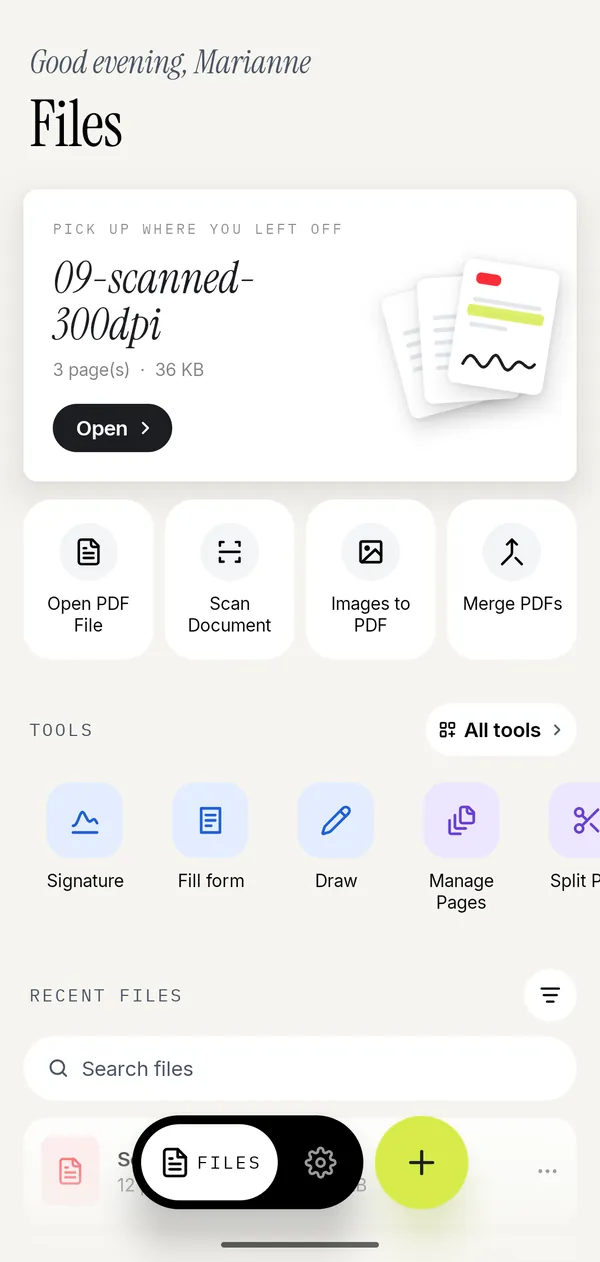
- Open Kyneto PDF and tap Images to PDF on the home screen.
- Pick the photos from your library, all in one go.
- On Arrange Images, press and drag a thumbnail to move it. The grid order is the page order.
- Choose a Page size (Fit to image, A4 or Letter), an Orientation and a Margin.
- Tap Create PDF. The document opens in the editor, ready to share or save.
Forgot one? Add images on the same screen brings in more before you create the file.
Page size, margin and file size
| Page size | What happens | Use it when |
|---|---|---|
| Fit to image | Each page is exactly the shape of its photo | Screenshots, a photo album, anything that will not be printed |
| A4 | Every page is A4 with the photo placed inside | Forms and offices outside the US |
| Letter | Every page is US Letter | Anything going to a US recipient |
A4 or Letter with a Small margin is the safe choice for paperwork. Fit to image with None suits screenshots, where white borders look like a mistake. The Android version of this guide has more on choosing between them; the settings are the same on iPhone.
On size: a modern iPhone photo is several megabytes. Images to PDF stores each photo at up to 2,200 pixels on its long side, which is enough for a printed page and keeps the PDF far smaller than the originals. If it is still over a limit, Compress PDF brings it down: type the limit in Target File Size, or for limits under 1 MB watch the estimate on the Compression Level slider; see compressing a PDF on iPhone.
Photographs of paper deserve the scanner
If the photo is of a document on a table, a scan will look much better than a photo turned into a page. Scan Document finds the edges, straightens the perspective and drops the table out of the frame, and Make Searchable (OCR) can then make the text searchable. The scanning guide covers it, including the scanners already built into Notes and Files.
Use Images to PDF for things that really are pictures: a damaged parcel, a screenshot, a diagram somebody sent in a chat.
Questions people ask
How do I convert a photo to PDF on iPhone for free?
Use the Print trick: Share, Print, pinch outward on the preview, then Share and Save to Files. Kyneto PDF is free to download and every tool can be used; the free tier limits how many documents you can export, and a weekly or yearly subscription removes the limit.
Can I convert a photo to PDF in the Notes app?
Yes, if the photo is in a note. Tap Share, then Markup, and Notes exports the note as a PDF; tap Done to save it. You get the note's layout rather than a clean page per photo.
How do I put several photos into one PDF on iPhone?
Select them all before you tap Share and Print, or select them in Files and choose Create PDF. In Kyneto PDF, pick them in Images to PDF, drag them into order and tap Create PDF.
Do I need an app to convert photos to PDF?
No. The Print trick and Files' Create PDF are built in. An app helps when you need a set page size and margin, a precise order, or a file under a size limit.
Is there a limit on how many photos I can add?
Kyneto PDF has no fixed limit. Many high-resolution photos make a large file, so compress the result before emailing it.
Are my photos uploaded anywhere?
Not by Kyneto PDF. The PDF is created on the phone with no account, and it works offline.
Free to download. No account, nothing uploaded.