
Compress a PDF on iPhone to the size a form allows
To compress a PDF on iPhone to a specific size, open it in Kyneto PDF, choose Compress PDF, switch to Target File Size and type the limit in megabytes. The app tells you before you apply if the pages cannot get that small, and does the work on the phone, with no upload. iPhone's own tools can make a PDF smaller too, but none of them lets you aim at a number, and a number is usually what the upload form is asking for.
Why iPhone scans are so big
A scan from Notes, Files or Preview is a set of photographs wrapped in a PDF. Each page is stored as a detailed colour image with fairly light compression, so a page can easily weigh a megabyte or more. MacMost measured a single scanned receipt at about half a megabyte and a two-page colour scan at over 2.5 MB. Portals that cap attachments at 1 MB or 2 MB reject files like that.
A PDF exported from Pages or Word is different: mostly text and vectors, already small, and squeezing it as images can make it bigger.
What iPhone can do on its own
- Compress in Files. Touch and hold a file and tap Compress, and Files makes a .zip archive. That is for storage. An upload form that wants a PDF will not take a zip, and a scan barely shrinks inside one because photographs are already compressed.
- Optimize File Size. Recent versions of Files offer this under Quick Actions when you touch and hold a PDF, and Shortcuts has an Optimize File Size of PDF action. Neither asks for a target. In MacMost's tests the Shortcuts action kept scanned images at high resolution, so files came out only slightly smaller, sometimes not smaller at all.
- A home-made shortcut. The Shortcuts route that does work on scans splits the PDF into pages, turns each page into a low-resolution JPEG with Make Image from PDF Page, and joins them back up with Make PDF. It shrinks scans a lot, but you build it yourself and tune a resolution number by trial and error.
- Preview, from iOS 26. Export in the Actions menu makes a smaller copy. In Apple's current guide the PDF export has Optimize Images for Screen and Save Images as JPEG switches. Still no field for the size you need, so you export, check the result in Files, and try again.
If the form says "maximum 2 MB", every one of these is a guessing game.
Compress to a size you type
- Open the PDF with Open PDF File, or share it to Kyneto PDF from Files or Mail.
- Tap All tools, then Compress PDF under Convert & optimize.
- Tap Target File Size and type the limit in megabytes, a little under it: for a 2 MB limit, type 1.9.
- Check the line under the field. Current Size shows where you are starting, and a warning appears if the pages cannot get that small.
- Tap Apply, then Share to send the smaller copy or Save to device to put it in Files.
Use a full stop for the decimal point; the field ignores a comma.
For limits under 1 MB, use the slider
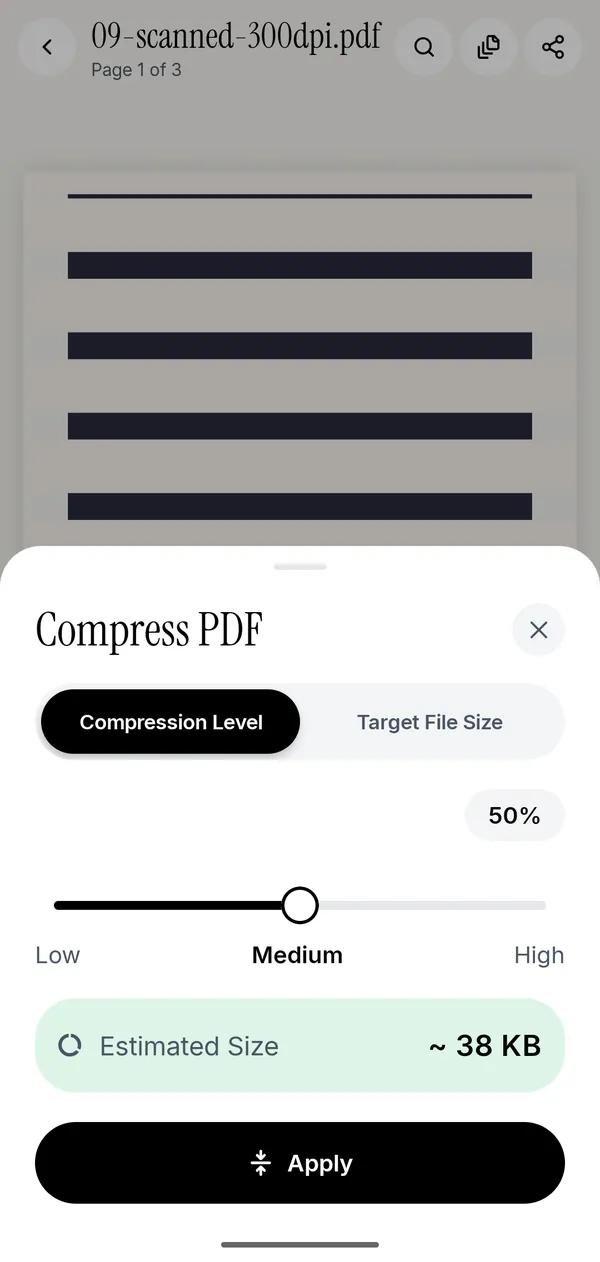
For a 500 KB or 200 KB limit, the other mode is easier. Tap Compression Level: it is a Low, Medium, High slider with an Estimated Size underneath that updates as you move it, before anything is written. Slide until the estimate is comfortably under the limit, then tap Apply. There is also a walk-through for a 100 KB limit; the sheet is the same on iPhone.
Two messages are worth recognising:
- Compression only shrinks images, so this PDF can't go below about … Your target is lower than the pages allow. Drop pages or split the file instead (see below).
- This PDF is already as small as it can get. The file is mostly text and vectors, and compressing it would only make it bigger, so the original is kept.
What compression costs you
Kyneto PDF compresses by turning each page into a JPEG at a lower resolution. A scan, which is already a picture, shrinks a lot and gets a little softer. Text becomes part of the image, so it can no longer be selected or searched, and form fields and links are lost.
That suggests an order of work:
- Fill in and sign the form first, because fields do not survive compression.
- Crop the margins first with Crop pages, so the size budget is not spent on the desk around a scanned sheet.
- Run Make Searchable (OCR) after compressing, not before, if the file needs to stay searchable.
When the target is out of reach
Three things help more than squeezing harder:
- Delete the pages the form does not need. A six-page statement where the portal wants page one is six times bigger than it has to be. Manage Pages does it.
- Split by size. If the form accepts several attachments, Split PDF → File size cuts the document into parts that each stay under the limit you set.
- Scan again with less in the frame. For a fresh scan, the scanning guide covers cropping and order.
All of it runs on the phone, with no account and no upload.
Questions people ask
How do I compress a PDF on iPhone for free?
Files' Optimize File Size quick action and Shortcuts are built in and free, but neither takes a target size. Kyneto PDF is free to download and every tool can be used; the free tier limits how many documents you can export, and a weekly or yearly subscription removes the limit.
Why is my scan from Notes so large?
Because each scanned page is a detailed colour photograph with light compression. Crop the margins, then compress it to the size the form allows.
Is there a shortcut to compress a PDF on iPhone?
Yes. Shortcuts has an Optimize File Size of PDF action, but it barely shrinks scans in published tests. A shortcut that rebuilds each page as a low-resolution JPEG works much better and takes some setting up.
Does the Compress option in Files make a PDF smaller?
It zips it. The result is a .zip archive rather than a smaller PDF, and most upload forms will not accept it.
Can I compress a PDF on iPhone without uploading it?
Yes. Kyneto PDF compresses on the device and works with no connection at all, so the file never leaves the phone.
Will the compressed PDF still be readable?
At a sensible target, yes. Zoom into the result before you send it, and if it is too soft, compress the original again with a larger target or a lower level. If the text has to stay searchable, run Make Searchable (OCR) on the compressed copy.
Free to download. No account, nothing uploaded.