
Scan a document to PDF on iPhone, then make it searchable
To scan a document to PDF on iPhone, open a note in Notes, tap the Attachments button (the paperclip), choose Scan Documents and hold the phone over the page. It captures on its own once it finds the edges. Tap Done and the scan is saved as a PDF in the note. Files and, from iOS 26, the Preview app have the same scanner and save straight to a folder. Kyneto PDF uses the same Apple document camera and adds what comes after the scan: searchable text, a size the upload form accepts, a signature, and the page you forgot.
Three scanners already on your iPhone
| App | How to start | Where the PDF ends up |
|---|---|---|
| Notes | Attachments button → Scan Documents | Inside the note |
| Files | More button (three dots) → Scan Documents | The folder you pick, after you tap Save |
| Preview (iOS 26 and later) | Scan Documents on the start screen | A new PDF that Preview lets you save and edit |
All three find the page edges, capture automatically, and let you switch to manual capture with the shutter button. In Notes and Files you can also press a volume button to take the shot, and drag the corners before tapping Keep Scan. Add as many pages as you need, then tap Done.
Which to use comes down to where you want the file. Files and Preview give you a PDF in a folder, ready to attach. Notes keeps the scan with the rest of the note, which is tidy until you need to send it.
One Notes trap
Getting the scan out of Notes has a catch. If you share the whole note as a PDF (Share, then Markup), Apple's own guide warns that a multi-page scan comes out with only its first page. Share the scan itself instead, from the menu on the scanned document inside the note, which offers to copy, share, rename or delete the PDF.
Where the built-in scan stops
The built-in scanners are good at capture. The work that follows is where people get stuck:
- Searching the text. A scan is a picture of words. In Apple's current guide, Preview's PDF export has an Embed Text switch that adds a text layer as it exports. Kyneto PDF does it in place with Make Searchable (OCR), without an export round trip.
- Size. Scans are heavy, and a three-page scan can be too big for an upload portal. Apple's tools shrink a PDF but do not let you type a target size. There is a separate guide to compressing a PDF on iPhone.
- A page you missed. Preview can add scanned pages to an existing PDF from its thumbnails. Kyneto PDF does the same with Scan Pages and asks where they go.
- What comes next. Signing, filling in, or hiding an account number before it goes anywhere.
Scan with Kyneto PDF
- Open Kyneto PDF and tap Scan Document on the home screen.
- Hold the phone over each page and let the camera capture it, then tap Save.
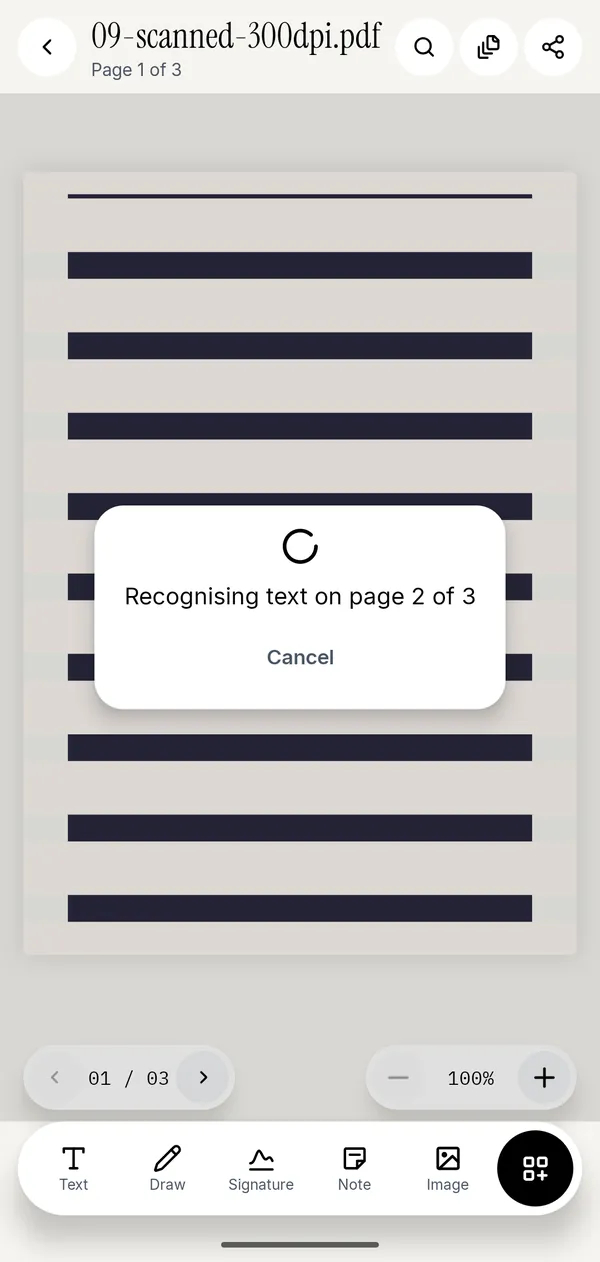
- Tap All tools and choose Make Searchable (OCR) under Convert & optimize.
- Tap the search button at the top of the editor and look up a word to check the text layer.
- Tap Share to send the PDF, or Save to device to keep it in Files.
The camera is Apple's own document scanner, so edge detection and automatic capture behave exactly as they do in Notes. The text recognition runs on the phone. Once the text layer exists you can search the scan, select a line and copy it.
Add the page you missed
You have scanned eleven pages and the twelfth is still on the desk. Rather than starting again:
- Open the PDF and tap All tools, then Scan Pages under Pages.
- Choose where the new pages go: At the start, At the end, or after a particular page.
- Scan, save, and they are inserted into the document you already have.
If the order is wrong in a long scan, Manage Pages shows every page as a thumbnail: drag to reorder, select the blank backs of double-sided sheets to delete them, and rotate the page you held upside down.
Before you send a scan
A short order of work saves a second attempt:
- Crop pages first, to drop the desk and the shadow at the edge of the frame.
- Compress PDF next, if a portal has a limit: Target File Size for a limit in megabytes, Compression Level with its size estimate for anything smaller.
- Make Searchable (OCR) last, because compression turns pages into images and removes any text layer.
- Signature or Redact if the page needs your name on it, or an ID number taken off it.
All of it runs on the device. A scanned passport, payslip or medical letter is never uploaded, and there is no account to create.
From a photo you already took
The scanners above work from the camera. If the page is already a photo in your library, scanning it again is often the better result, because the scanner straightens the perspective. If you cannot, turn the photo into a PDF instead: the photos to PDF guide covers the built-in ways and Images to PDF.
Questions people ask
How do I scan a document to PDF on iPhone with Notes?
Open a note, tap the Attachments button, then Scan Documents. Hold the phone over the page, tap Keep Scan if you are capturing manually, add more pages, then tap Done. The scan is saved as a PDF in the note.
Is there a free way to scan to PDF on iPhone?
Yes. Notes, Files and Preview all scan to PDF at no cost. Kyneto PDF is free to download and every tool can be used; the free tier limits how many documents you can export, and a weekly or yearly subscription removes the limit.
Can I make a scanned PDF searchable on iPhone?
Yes. Kyneto PDF's Make Searchable (OCR) adds a text layer on the device. Preview's PDF export also has an Embed Text switch that does it as part of an export.
How do I add a page to a scan I already saved?
In Kyneto PDF, open the PDF and use Scan Pages; choose the start, the end, or after a specific page. In Preview, touch and hold a thumbnail and tap Scan Pages.
Can I scan a document from a photo?
The scanners work from the camera, not from the photo library. To turn existing photos into a PDF, use Images to PDF in Kyneto PDF, or one of the built-in routes in the photos guide.
Is my scan uploaded anywhere?
Not by Kyneto PDF. Capture, text recognition and compression all happen on the phone, and they work offline.
Free to download. No account, nothing uploaded.