
Scan documents to a searchable PDF on Android
To scan a document to a searchable PDF on Android, open Kyneto PDF, tap Scan Document, point the camera at the page and let the app find the edges and straighten the shot. Then run Make Searchable (OCR) to add a text layer, so the words in the scan can be searched and copied. Both steps run on the phone.
A photograph is not a scan
Taking a picture of a page gives you a picture of a page: trapezoidal, with a desk around it, and with no text in it as far as any computer is concerned. A scan is the same photograph after three things have happened to it.
Edge detection finds the four corners of the sheet. De-skewing flattens the perspective so the page is rectangular again, as if the camera had been directly above it. OCR reads the characters and writes them into the file as an invisible text layer behind the image, which is what makes the scan searchable.
Most phone camera apps do the first two. The third is the one that matters later.
Scan and make it searchable
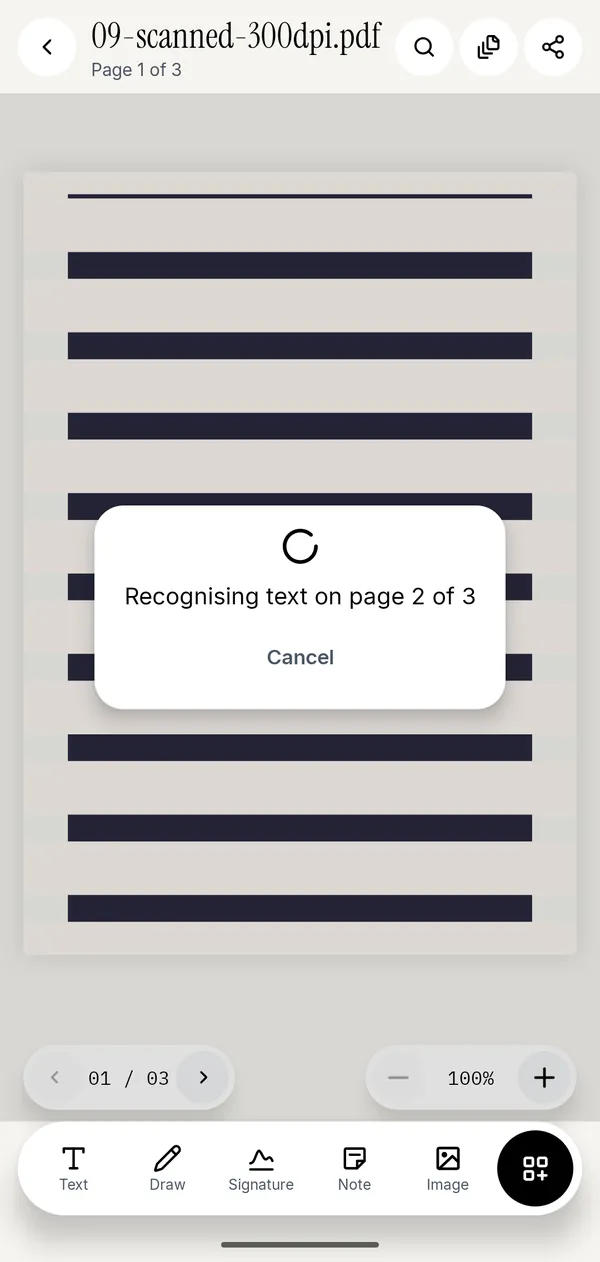
- Open Kyneto PDF and tap Scan Document on the home screen. The camera opens with the page edges highlighted.
- Capture each page. Keep the whole sheet in frame and give it light from the side rather than straight on, so the glare lands off the paper.
- Save the result as a PDF.
- Open it, tap All tools, and choose Make Searchable (OCR) under Convert & optimize.
Once the text layer exists you can use the search icon in the viewer to find a word inside the scan, and you can select and copy text off the page the same way you would in a born-digital PDF.
Scans are big; fix that before you send one
A three-page scan at a sensible resolution is comfortably several megabytes, which is more than most upload forms accept. Two tools in the same app handle it:
- Crop pages hides the desk, the shadow and the thumb at the edge of the frame, and the page looks deliberate. Cropping alone does not shrink the file, but compression keeps only the visible area.
- Compress PDF → Target File Size takes the number the form allows and gets you there, showing the estimate first.
Do the crop before the compression. Compressing a page that is half desk spends the budget on the desk. Run Make Searchable (OCR) after compressing, not before: compression turns every page into an image and removes the text layer.
Keep the pages in order
A long scan rarely comes out in the right order the first time. Manage Pages shows every page as a thumbnail: drag to reorder, multi-select to delete the blank backs of double-sided sheets, and rotate the one page you photographed upside down. If you missed a page entirely, Scan Pages from inside the editor adds it to the document you already have, in the position you choose, rather than making you start again.
Why offline matters for scans
The documents people scan with a phone are passports, driving licences, medical letters, payslips and signed contracts. Mainstream scanner apps routinely upload those to run OCR in the cloud and tie the result to an account. Kyneto PDF runs the recognition on the phone. There is no account and no upload, so a scanned ID exists in exactly one place: your device.
It also means the scanner works in a basement, on a plane, and in the corner of an office with no guest Wi-Fi, which is where the forms always are.
Questions people ask
How do I scan a document to PDF on Android without an app that uploads it?
Use Kyneto PDF: Scan Document uses the camera, finds the page edges and saves a PDF on the device. Nothing is sent anywhere, with or without a connection.
What does "searchable PDF" mean?
It means the scan carries an invisible layer of recognised text behind the image. The page still looks like a scan, but search, selection and copy all work, and so does indexing by other apps.
Does OCR work offline?
Yes. Make Searchable (OCR) runs on the device, so it works in aeroplane mode.
My scan is too big to upload. What now?
Crop the margins first, then use Compress PDF with a target file size, and run Make Searchable (OCR) afterwards, because compression removes the text layer. If the form takes several attachments, Split PDF by file size will cut it into parts that each fit.
Can I scan several pages into one PDF?
Yes. Keep capturing pages in the scanner and they are saved into a single document. You can add more pages later with Scan Pages from inside the editor.
Free to download. No account, nothing uploaded.