
Split a PDF or extract pages on your phone
To take part of a PDF out on a phone, open it in Kyneto PDF and choose Split PDF. Page ranges, every N pages, one file per page and file size are the four ways to cut it. If you want one new document containing only certain pages, select those pages in Manage Pages and extract them instead. Everything runs on the device.
Split and extract are not the same thing
This trips almost everybody up, and it is why people end up with twelve one-page files when they wanted one four-page attachment.
| You want | Use | You get |
|---|---|---|
| Pages 4 to 7 as one attachment | Extract pages | One new PDF with four pages |
| Each chapter as its own file | Split by page ranges | Several PDFs, one per range |
| Every page separately | Split, one file per page | As many PDFs as there are pages |
| Parts that each fit an upload limit | Split by file size | As many PDFs as needed, each under the size |
The four ways to split
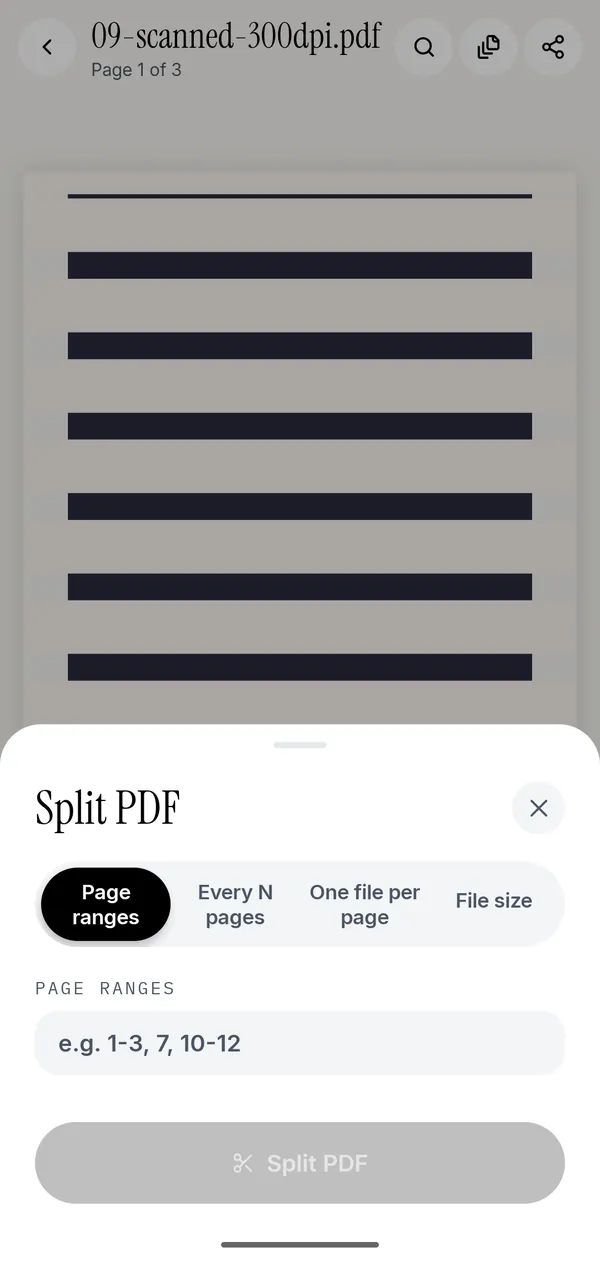
- Open the PDF, tap All tools, then Split PDF.
- Page ranges takes something like
1-3, 7, 10-12and makes one file per range. Invalid ranges and ranges past the end of the document are rejected before anything is written. - Every N pages is for documents with a regular structure: a 60-page bundle of 4-page invoices becomes fifteen invoices.
- One file per page does exactly what it says, and is the right answer when you are feeding a system that wants single pages.
- File size measures the pages and cuts the document into parts that each stay under the size you type. If a single page is already larger than the limit on its own, the app says so and suggests compressing first, rather than producing a file that breaks the rule.
Each mode previews how many files it will create before you commit.
Extracting a few pages instead
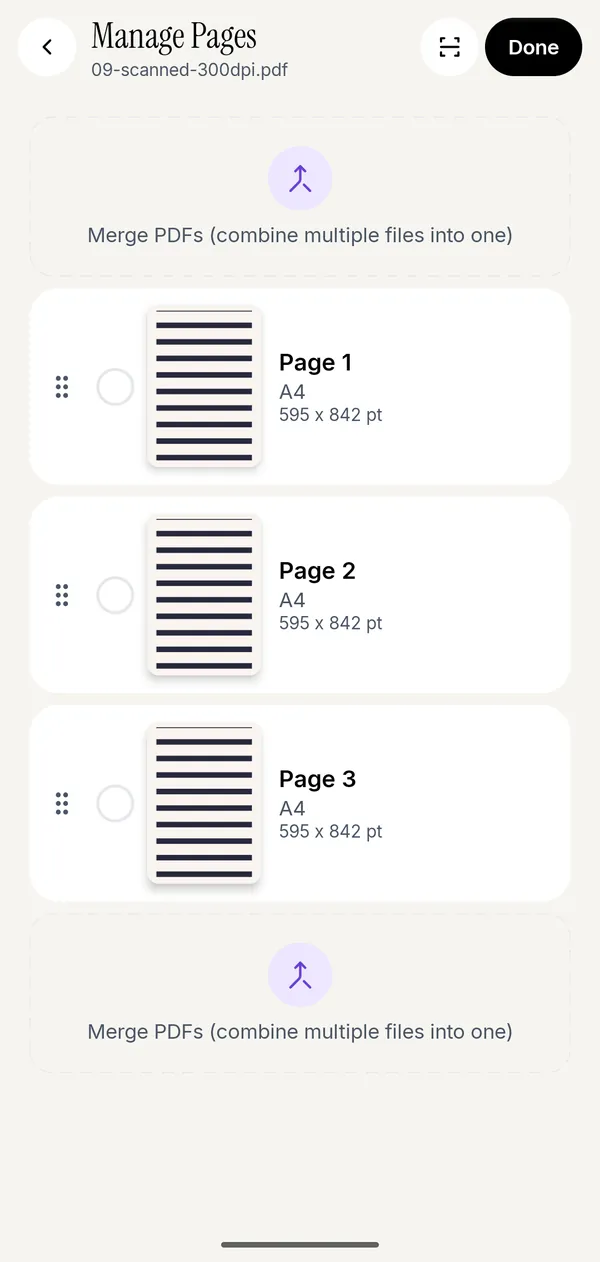
Open Manage Pages, select the pages you want, and extract them as a new document. The original is untouched. This is what you want when somebody asks for "just the signature page" or "pages 4 to 7, please".
While you are in there, the same screen deletes pages you do not want, drags them into a different order, and rotates a page that was scanned sideways.
A worked example
A 40-page tender document arrives. You need to send the pricing annex, pages 31 to 36, and the portal caps attachments at 2 MB.
- Open the file, Manage Pages, select pages 31 to 36, extract. You now have a six-page PDF.
- Open the new file and check the size. If it is over 2 MB, Compress PDF → Target File Size → 2 MB.
- Export and attach.
Three steps, no computer, and the tender never touched a server.
Questions people ask
How do I extract pages from a PDF on my phone?
Open the PDF in Kyneto PDF, go to Manage Pages, select the pages you want and extract them. The selected pages are saved as one new document and the original stays as it was.
What is the difference between splitting and extracting?
Splitting cuts a PDF into several separate files. Extracting keeps only the pages you picked and saves them as a single new document. If someone asked for "pages 4 to 7" as one attachment, you want extract.
Can I split a PDF so each part is under a file size limit?
Yes. Split PDF has a File size mode: type the limit and the app cuts the document into parts that each stay under it. If one page alone exceeds the limit, it tells you to compress the document first.
Does splitting a PDF need an internet connection?
No. Splitting, extracting, reordering and rotating all run on the device, with no account and no upload.
Can I split a password-protected PDF?
Open it with its password first. After that it behaves like any other document, and you can remove the password from the copy you share.
Free to download. No account, nothing uploaded.