
Convert a PDF to JPG on iPhone, with or without an app
To convert a PDF to JPG on an iPhone without an app, you have three options: screenshot the page, export it from the Preview app as JPEG, or run a shortcut with the Make Image from PDF Page action. To turn every page into a JPG at a chosen quality and put them straight into Photos, open the PDF in Kyneto PDF, tap All tools, choose Export as images, pick JPG and tap Export.
Which route is right depends on how many pages you have and how sharp the result needs to be.
Without an app
A screenshot
Open the PDF, zoom so the page fills the screen, and press the side button and volume up together (side button and Home on older iPhones). Crop the edges in the editor that appears, then save. Screenshots go to the Photos app by default.
It is quick and it is fine for a chat message. It is also one page at a time, at your screen's resolution, and anything you did not zoom into is soft.
Preview's Export
Preview arrived on the iPhone with iOS 26. Open the PDF, tap the Actions menu next to the file name, tap Export and choose JPEG (PNG, HEIC and TIFF are also there). Apple's current guide lists a Resolution setting when you export a PDF to an image format, and a size slider for JPEG. Apple does not say how a long document is divided into images, so check what you get before you rely on it for fifty pages.
A shortcut
The Shortcuts app has a Make Image from PDF Page action that creates images from the pages of a PDF, as JPEG, PNG and other formats, with the resolution defaulting to 300 dpi. A three-step shortcut does the job: Select File, Make Image from PDF Page (set to JPEG), Save to Photo Album. Build it once and it converts any PDF you pick. It is the best free option for a whole document, as long as you are happy building a shortcut.
Save PDF pages as JPG with Kyneto PDF
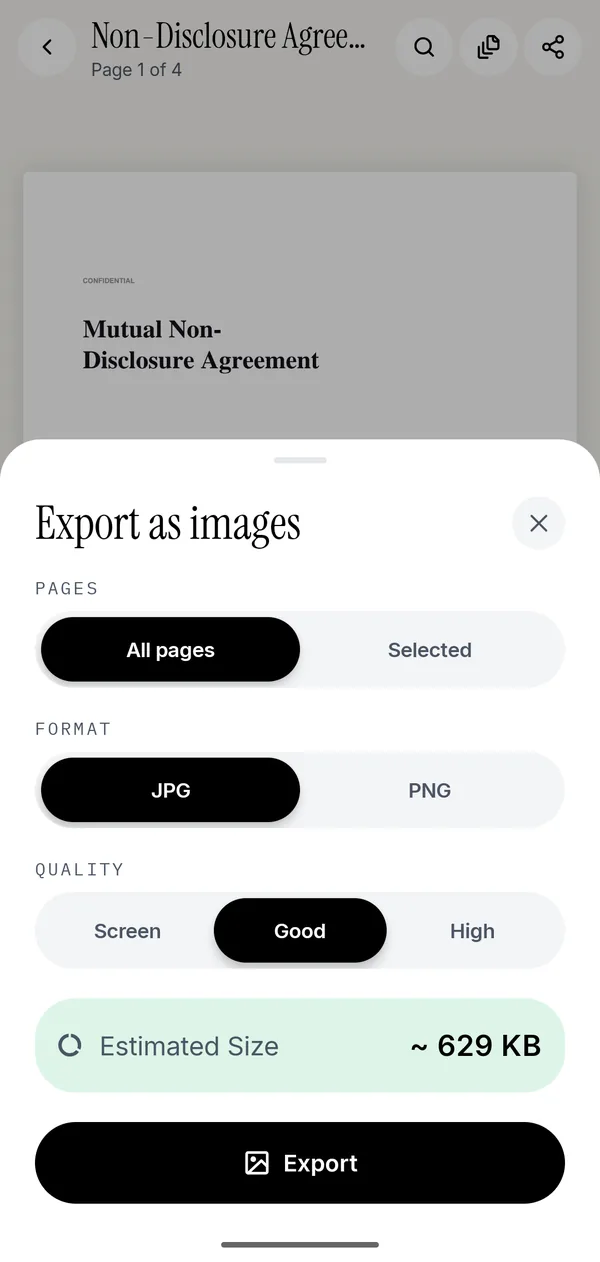
- Open the PDF in Kyneto PDF with Open PDF File, or share it from Files or Mail to the app.
- Tap All tools, then Export as images under Convert & optimize.
- Under Pages, choose All pages, or Selected for the pages you picked in Manage Pages.
- Choose JPG or PNG, then Screen, Good or High.
- Check the estimated size and tap Export.
- Tap Save images to put them in Photos, or Share to send them on.
Each page becomes one image, numbered in page order. Screen renders at 96 dpi, Good at 150 and High at 300, which is the usual print standard. The estimate matters on long documents: a 30-page file at High quality adds up quickly, and it is better to find that out before the images are written than after.
To convert a single page, select it in Manage Pages first and then choose Selected.
JPG or PNG?
| Choose | For | Why |
|---|---|---|
| JPG | Scans, photos, anything with pictures | Much smaller files for continuous-tone images |
| PNG | Text, diagrams, logos, line drawings | No blurring around sharp edges |
| High | Printing, zooming in, archiving | Sharpest text, largest files |
| Screen | Chat, a quick look on a phone | Smallest files |
A page of small print saved as a Screen-quality JPG looks fuzzy the moment someone zooms. For a document someone will read closely, use PNG or High.
Export as images or Extract images?
Two different jobs hide behind "get the images out of a PDF".
Export as images renders each whole page as a picture, which is what people mean by PDF to JPG.
Extract images pulls out the photographs that are stored inside the PDF, at the resolution they were stored at: the product shot in a brochure, the photo in a report. On iPhone it copies the images the PDF keeps as JPEGs, which covers most photos and scans. If the PDF has none, the app says so and points you back to Export as images. A PDF made from a word processor is usually all text, so there is nothing to extract.
The Android version of this guide covers the same two tools, plus turning images back into a PDF.
Questions people ask
Can I convert a PDF to JPG on iPhone without an app?
Yes. Take a screenshot of the page, export the PDF as JPEG from the Preview app (iOS 26 and later), or build a shortcut with the Make Image from PDF Page action. The shortcut is the most practical for a whole document.
Is there a shortcut to convert a PDF to JPG on iPhone?
Yes. Combine Select File, Make Image from PDF Page set to JPEG, and Save to Photo Album. The action creates images from the pages of the PDF.
How do I save a PDF as a JPG in Photos?
In Kyneto PDF, use Export as images, then tap Save images. With Apple's tools, a screenshot or the Save to Photo Album shortcut action puts the images in Photos.
Can I convert a PDF to JPG on iPhone for free?
Yes, with the built-in routes above. Kyneto PDF is free to download and Export as images can be used straight away; the free tier limits how many documents you can export, and a weekly or yearly subscription removes that limit.
Does converting a PDF to JPG upload the file?
Not in Kyneto PDF. The pages are rendered on the iPhone with no account and no server, and it works offline.
Free to download. No account, nothing uploaded.