
Split a PDF on iPhone by range, page or file size
The iPhone has no Split button in Files or Preview, but there are workarounds: the Shortcuts app has a Split PDF Into Pages action that turns a PDF into one file per page, and the print preview can save a page range as a new PDF. To split by ranges, every few pages or by file size in one go, open the PDF in Kyneto PDF, tap All tools and choose Split PDF. It shows how many files it will create before it writes anything.
First, decide which job you actually have, because "split" covers two.
Split or extract?
| You want | Use | You get |
|---|---|---|
| Pages 4 to 7 as one attachment | Extract pages | One new PDF with four pages |
| Each chapter as its own file | Split by page ranges | One PDF per range |
| Every page separately | Split, one file per page | As many PDFs as there are pages |
| Parts that each fit an upload or email limit | Split by file size | As many PDFs as needed, each under the size |
If somebody asked for "just pages 4 to 7", you want extract. People who pick split for that end up with four one-page files.
What the iPhone can do on its own
Shortcuts. The Shortcuts app has a Split PDF Into Pages action, which takes a PDF and returns one PDF per page. Build a shortcut that selects a file, splits it and saves the results to Files, and you have a free "one file per page" tool. Anything cleverer, such as page ranges, means adding more actions and some list handling.
The print trick. Open the PDF, tap Share, then Print, set a page range, and share the preview from the print screen to Save to Files. You get one new PDF containing just that range. It is one range per pass, and it is a workaround, not a feature, so check the result.
Preview, the long way. In Preview (iOS 26 and later), tap the Actions menu next to the file name, choose Duplicate, then delete the pages you do not want from the copy. That extracts a range, again one file at a time.
None of these split by file size, which is usually the reason a document needs splitting at all.
Split a PDF with Kyneto PDF
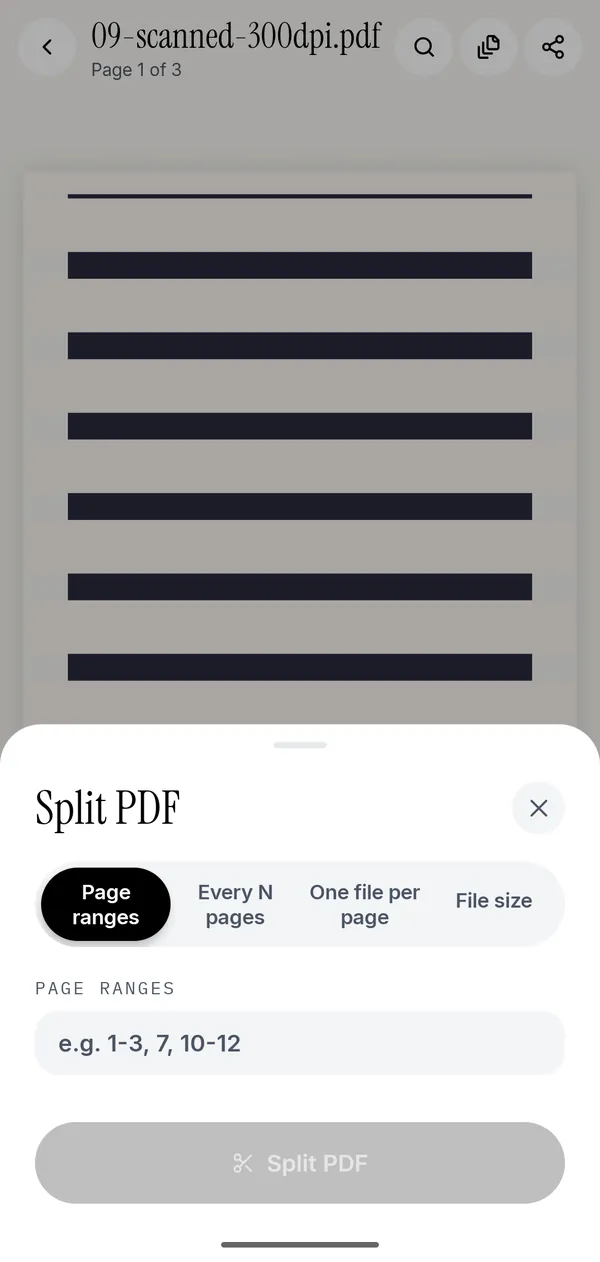
- Open the PDF in Kyneto PDF with Open PDF File, or share it from Files or Mail to the app.
- Tap All tools, then Split PDF under Pages.
- Choose Page ranges, Every N pages, One file per page or File size.
- Enter the ranges (for example
1-3, 7, 10-12), the Pages per file, or the Maximum size per file. - Check how many files will be created, then tap Split PDF.
- In Split results, tap Share all, or open a single part.
What each mode is for:
- Page ranges makes one file per range. A range that does not exist in the document is rejected before anything is written.
- Every N pages suits documents with a fixed structure: a 60-page bundle of 4-page invoices becomes fifteen invoices.
- One file per page is for systems that only accept single pages.
- File size measures the pages and cuts the document into parts that each stay under the size you type. If one page is bigger than the limit on its own, the app says so and suggests compressing first, instead of producing a file that breaks the rule.
Extract one page instead
To pull out a single page, or a handful, as one new PDF: open Manage Pages, tap the circles next to the pages you want and tap Extract pages. The original document is not changed. This is the right tool for "send me the signature page" or "upload page 1 only".
The longer guide to splitting and extracting has a worked example with a 40-page tender, and deleting pages on iPhone covers the opposite job.
When splitting is about email
The most common reason to split a PDF on a phone is an attachment limit. Splitting by file size lets you send a 60 MB document as three emails without lowering its quality. If one email is the requirement, compress instead; what to do when a PDF is too large to email compares the two and lists each mail service's limit.
Questions people ask
How do I split a PDF on iPhone for free?
Use the Shortcuts app's Split PDF Into Pages action for one file per page, or the print preview to save a page range as a new PDF. Kyneto PDF is free to download and Split PDF can be used straight away; the free tier limits how many documents you can export, and a weekly or yearly subscription removes that limit.
Is there a shortcut to split a PDF on iPhone?
Yes. Shortcuts includes a Split PDF Into Pages action that creates a separate PDF for each page. Splitting by range or by size needs more work in Shortcuts, or an app.
How do I extract one page from a PDF on iPhone?
In Kyneto PDF, open Manage Pages, select the page and tap Extract pages. With only Apple's apps, duplicate the file in Preview and delete every other page from the copy.
Can I split a PDF into multiple files under a size limit?
Yes. Split PDF in Kyneto PDF has a File size mode: type the limit and every part stays under it. If a single page is already over the limit, compress the document first.
Does splitting a PDF upload it?
Not in Kyneto PDF. Splitting runs on the iPhone with no account and no server, and works with the phone offline.
Free to download. No account, nothing uploaded.