
Delete pages from a PDF on iPhone, one or many
Yes, you can delete pages from a PDF on an iPhone without installing anything. On iOS 26 or later, open the PDF in the Preview app, show the page thumbnails, touch and hold the page you want gone and tap Delete Page. To remove a batch of pages in one pass, or to keep the original intact, open the file in Kyneto PDF, choose Manage Pages, select the pages and tap Delete.
Which one to use depends on how many pages and whether you need the full version afterwards.
The built-in way: Preview
Apple added Preview to the iPhone with iOS 26, and its page tools are documented in the iPhone User Guide:
- Open the Preview app and tap Browse to find the PDF.
- Show the thumbnails: tap the page count, or the sidebar button on iOS 27.
- Touch and hold the thumbnail of the page to remove.
- Tap Delete Page.
The same menu has Rotate Left, Rotate Right, Insert Blank Page, Insert from File, Scan Pages and Crop Page, and you can drag a thumbnail to move a page. If you delete the wrong one, tap the More button, then Undo.
The Files app's own PDF viewer has had a similar thumbnail menu since iOS 15 (rotate, insert a blank page, insert from a file, scan pages, delete), so on an older iPhone that is where to look.
Where it stops
- It changes the file itself. Preview saves when you go back, so the full version is gone unless you made a copy first. Use the Actions menu next to the file name and tap Duplicate before you start.
- Apple's steps work on one thumbnail at a time. Removing two pages is quick. Removing fifteen pages from a 40-page scan is a lot of touching and holding.
- There is no "save only these pages as a new file". Duplicate and delete gets you there, but it is the long way round.
For a page or two, Preview is all you need.
Delete several pages with Kyneto PDF
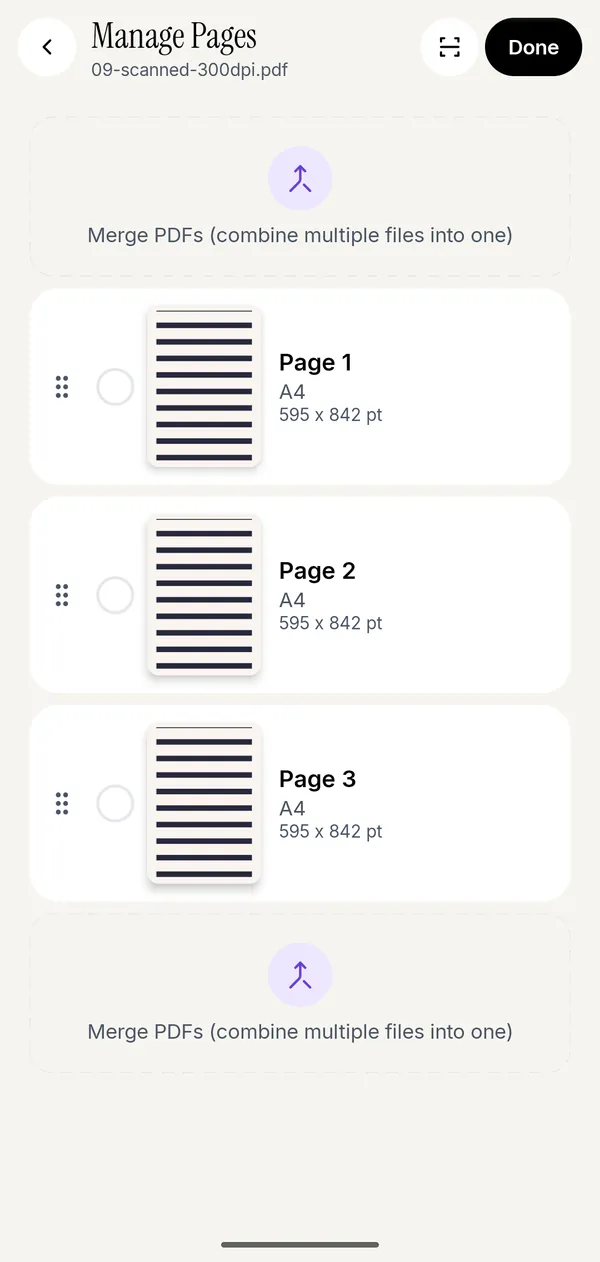
- Open the PDF in Kyneto PDF with Open PDF File, or share it from Files to the app.
- Tap All tools, then Manage Pages under Pages.
- Tap the circle next to every page you want to remove; the header counts them.
- Tap Delete. At least one page has to remain.
- Tap Done, then the share icon, and choose Save to device or Share.
The PDF in Files is not touched. What you save or share is a new copy without those pages, so the original is still there if you need it later.
Because the selection is multi-select, a scan where every other page is a blank back side takes one pass: tap the blanks, delete, done. While you are on the same screen, Rotate left and Rotate right fix a sideways scan, and dragging a page by its handle changes the order. The full guide to deleting, reordering and rotating pages covers inserting blank pages, images and freshly scanned pages too.
Delete, extract or split?
People describe three different jobs with the same words, and picking the wrong one costs time:
| You want | Use | Result |
|---|---|---|
| This document, minus some pages | Manage Pages → Delete | One shorter file |
| Only pages 4 to 7, as their own file | Manage Pages → Extract pages | A new file; the original stays whole |
| Each section as a separate file | Split PDF | Several files |
If a form says "upload page 1 only", you want extract, not delete. There is more on that in splitting a PDF on iPhone.
Fewer pages, smaller file
Deleting pages is the most effective way to shrink a PDF. A six-page bank statement where the portal only wants the first page is six times bigger than it needs to be, and no compression setting beats not including the other five. If it is still over the limit afterwards, Compress PDF with Target File Size takes the number from the form.
Questions people ask
Can you delete pages from a PDF on iPhone?
Yes. On iOS 26 and later, the built-in Preview app deletes a page from the thumbnail menu. Kyneto PDF does it for many pages at once through Manage Pages.
How do I delete one page from a PDF on iPhone?
Open the PDF in Preview, show the thumbnails, touch and hold the page and tap Delete Page. Duplicate the file first if you want to keep the full version.
Can I delete pages from a PDF on iPhone for free?
Yes. Preview is built in and free. Kyneto PDF is free to download and Manage Pages can be used straight away; the free tier limits how many documents you can export, and a weekly or yearly subscription removes that limit.
How do I remove pages from a PDF in the Files app?
Open the PDF in Files, show the page thumbnails and touch and hold a page; the menu that appears includes Delete. On iOS 26 and later, Preview offers the same and more.
Can I get a deleted page back?
In Preview, use More and then Undo while the document is still open; after that, only a duplicate has the page. In Kyneto PDF, the original in Files is never changed, so open it again.
Does deleting pages upload the PDF anywhere?
Not with Kyneto PDF: it edits pages on the device, with no account and no server, and works offline. Preview is part of iOS and involves no third-party service either.
Free to download. No account, nothing uploaded.