
Crop a PDF on iPhone, and what cropping really hides
To crop a PDF on an iPhone with the built-in Preview app (iOS 26 and later), scroll to the page, tap the Crop button, drag the blue handles around the part to keep and tap Crop. To crop every page with the same frame in one go, open the PDF in Kyneto PDF, choose Crop pages, drag the handles, set Apply to to All pages and tap Apply. Either way, treat a crop as hiding the margin rather than deleting it.
That last point decides whether cropping is the right tool for your job, so it comes first.
What cropping a PDF actually does
A PDF page has a full sheet (the media box) and a visible area (the crop box). Kyneto PDF's Crop pages moves only the crop box. Everything outside it is still in the file: it just is not shown. That is why Reset can give you the whole page back ("The original page area is back."), and it is also why someone with a desktop PDF editor could do the same with your exported file.
Apple's iPhone guide does not say what Preview's crop does to the trimmed area. Its Mac guide describes cropping a PDF as a way "to hide content". The safe assumption for both: a crop changes what people see, not what the file contains.
So:
- To tidy a scan (the desk, a thumb, a shadow around the page), crop. That is exactly what it is for.
- To remove something sensitive in the margin, such as an account number or an address, do not rely on a crop. Redact it, which deletes the text.
The built-in way: Preview
Apple's steps for Preview on iPhone:
- Open the PDF in Preview and scroll to the page you want to crop.
- Tap the Crop button.
- Drag the blue handles to select the area to keep.
- Tap Crop.
If you crop the wrong thing, tap the More button, then Undo. Crop Page is also in the menu that appears when you touch and hold a page thumbnail. Apple's instructions work page by page, which is fine for one stray margin and tedious for a 30-page scan.
Crop pages with Kyneto PDF
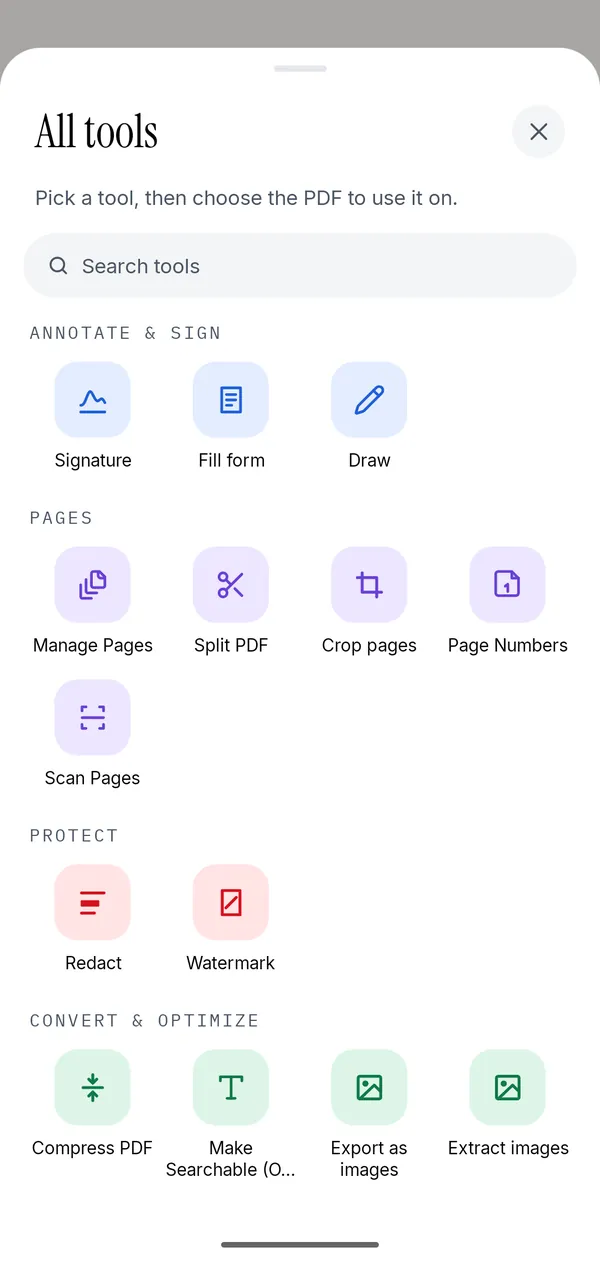
- Open the PDF in Kyneto PDF with Open PDF File, or share it from Files to the app.
- Tap All tools, then Crop pages under Pages.
- Drag the handles to set the area to keep.
- Under Apply to, choose This page, Selected or All pages.
- Tap Apply, then Done.
- Tap the share icon and choose Save to device or Share.
With All pages, the app reminds you that "The same crop is used on every page", which is what you want for a scanned book or a set of slides with identical margins. With Selected, tap the pages to include, so you can trim the scanned pages and leave the typed cover page alone.
Changed your mind? Open Crop pages again and tap Reset to widen the page back to its original area.
Making the trimmed part really go away
If the margin has to be gone from the file, not just from view, there are two ways inside the app:
- Compress PDF. Compression redraws each page from its visible area only, so a cropped page comes out without the trimmed part. The pages become images, so the text stops being selectable; run Make Searchable (OCR) afterwards if you need search. If the app says "This PDF is already as small as it can get.", nothing was rewritten and the trimmed area is still in the file.
- Export as images. Each page is rendered from its visible area, so the images contain only what you kept.
For anything confidential, Redact is still the tool to use, because it removes the text under the box rather than relying on a page being redrawn. The compression guide explains what compression does to quality.
Does cropping make the file smaller?
Not by itself. The content outside the crop box is kept, so the file size barely changes. Crop first and compress second if size is the goal. For a big reduction, deleting the pages nobody needs usually does more than any crop.
Questions people ask
How do I crop a PDF on iPhone?
In Preview (iOS 26 and later), scroll to the page, tap Crop, drag the handles and tap Crop. In Kyneto PDF, open All tools, choose Crop pages, drag the handles and tap Apply.
Can I crop all pages of a PDF at once on iPhone?
Yes, in Kyneto PDF: set Apply to to All pages and one crop is used on every page. Apple's Preview instructions crop the page you are on.
Does cropping a PDF remove the hidden content?
Not in Kyneto PDF: the crop hides the area and the content stays in the file until you compress or redact. Apple's Mac guide also describes PDF cropping as hiding content, and the iPhone guide does not say otherwise.
Can I crop a PDF in Preview on iPhone?
Yes. Preview on iPhone, which came with iOS 26, has a Crop button for PDF pages and a Crop Page option in the thumbnail menu.
Can I undo a crop?
In Kyneto PDF, open Crop pages and tap Reset. In Preview, tap More and then Undo while the document is open.
Does cropping upload my PDF?
Not in Kyneto PDF. Cropping runs on the iPhone, with no account and no server, and works offline.
Free to download. No account, nothing uploaded.