
Save PDF pages as JPG or PNG on Android
To save a PDF page as a JPG on Android, open the file in Kyneto PDF, tap All tools and choose Export as images. Pick All pages or just the ones you selected, choose JPG or PNG and a quality, then tap Export. The estimated size is shown before anything is written, and the images are saved to your photos or shared straight from the app.
Two different jobs hide behind "get the image out of a PDF", and picking the wrong one gives you a blurry screenshot or a file you cannot use.
Export the pages as images
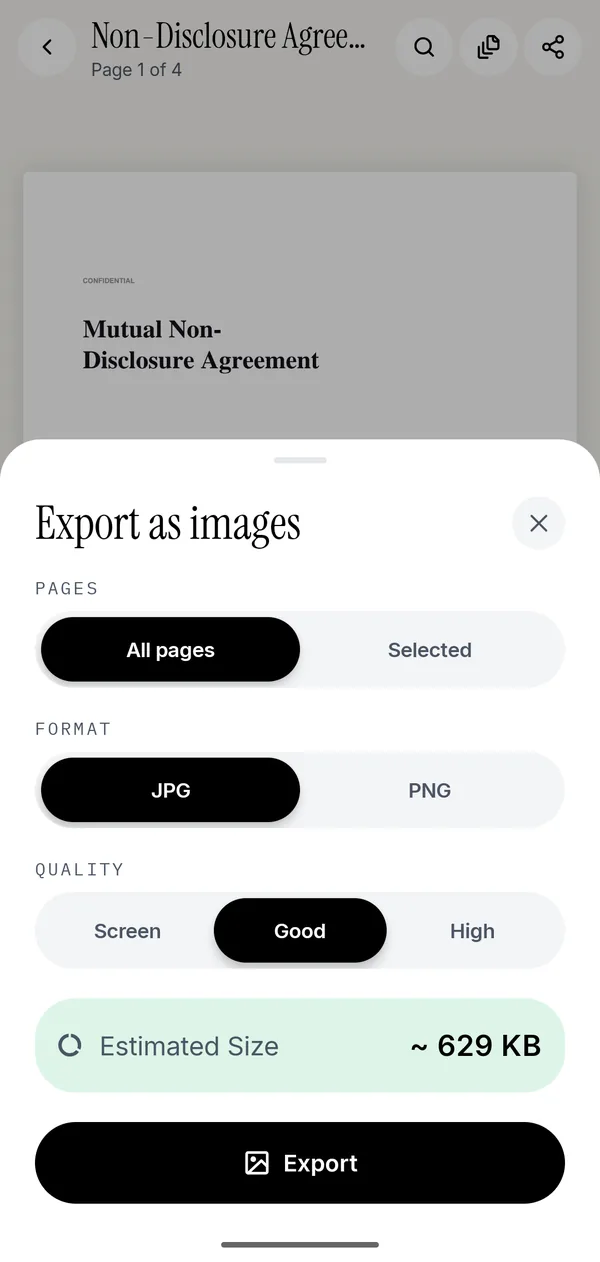
- Open the PDF and tap All tools, then Export as images under Convert & optimize.
- Under Pages, choose All pages, or Selected if you picked pages in Manage Pages first.
- Choose JPG or PNG.
- Choose a quality: Screen, Good or High.
- Check the estimated size, then tap Export. Save the result to your photos or share it from the app.
Each page comes out as one image. A four-page document gives four files, numbered in page order.
JPG or PNG, Screen or High
| Choice | Picks | Why |
|---|---|---|
| JPG | Scans, photographs, anything with pictures on it | Much smaller for continuous-tone images |
| PNG | Text, diagrams, line drawings, logos | No compression smudging around sharp edges |
| Screen | Chat, email, a slide seen once | Smallest files, fine on a phone screen |
| Good | Most things | The default for a reason |
| High | Printing, zooming in, archiving | Largest files, sharpest text |
A page of body text exported as a Screen-quality JPG looks soft the moment anyone zooms. The same page as a High PNG is crisp and several times the size. If it is going into a slide deck, pick PNG and High and compress the deck instead.
Pulling out the pictures that are already inside
Extract images does something different. Instead of rendering each page as a picture, it pulls out the image objects embedded in the PDF at their original resolution: the photograph in a brochure, the logo in a letterhead, the scan inside a scanned document.
Use it when you want the picture itself rather than a picture of the page. A product photo extracted this way comes out at the resolution the designer placed, which is usually far better than a rendered page.
If the PDF has no embedded images, the app says so and points you back to Export as images. A PDF generated from a word processor is all text and vectors, so there is nothing to extract.
Keeping the files small
The estimate at the bottom of the sheet is the number to watch. A 30-page document at High quality can easily run past 50 MB, which no email will take.
Three ways down:
- Export only the pages you need. Select them in Manage Pages first, then choose Selected.
- Drop to Good, or to Screen if it is only going to be looked at on a phone.
- Use JPG rather than PNG for anything photographic. On a scan the difference is often five times.
If the problem is the PDF itself rather than the images, compressing it to a target size is the better fix.
The round trip
Pages exported as images can be turned back into a PDF with Images to PDF, which is a crude but effective way to flatten a document that misbehaves in other readers. You lose the text layer doing it, so run Make Searchable (OCR) afterwards if you need to search the result. The guide to photos and PDFs covers the page size options.
Questions people ask
How do I convert a PDF to JPG on Android?
Open the PDF in Kyneto PDF, go to All tools → Export as images, choose JPG and a quality, then tap Export. The images are written on the phone and can be saved to your photos.
Can I export just one page of a PDF as an image?
Yes. Select the page in Manage Pages first, then choose Selected under Pages in the Export as images sheet.
What is the difference between Export as images and Extract images?
Export as images renders each page as a picture. Extract images pulls out the pictures that were embedded in the PDF, at their original resolution.
Should I use JPG or PNG?
JPG for scans and photographs, PNG for text, diagrams and logos where sharp edges matter.
Where do the exported images go?
You choose: save them to your photos, or share them directly from the app to whatever app you are sending them with.
Does this need an internet connection?
No. Rendering and exporting run on the device, so it works offline and the document is never uploaded.
Free to download. No account, nothing uploaded.