
Highlight and annotate a PDF on Android
To highlight a PDF on Android, open it in Kyneto PDF, tap Draw on the bottom toolbar, choose Highlighter, pick a colour and swipe along the line you want marked. The same toolbar holds a pen, shapes and an undo button. Export when you are finished and the marked-up copy is saved on the phone.
Marking up a contract on a phone is one of those jobs that sounds worse than it is. The screen is small, but you are usually marking three lines, not forty.
Highlight a line
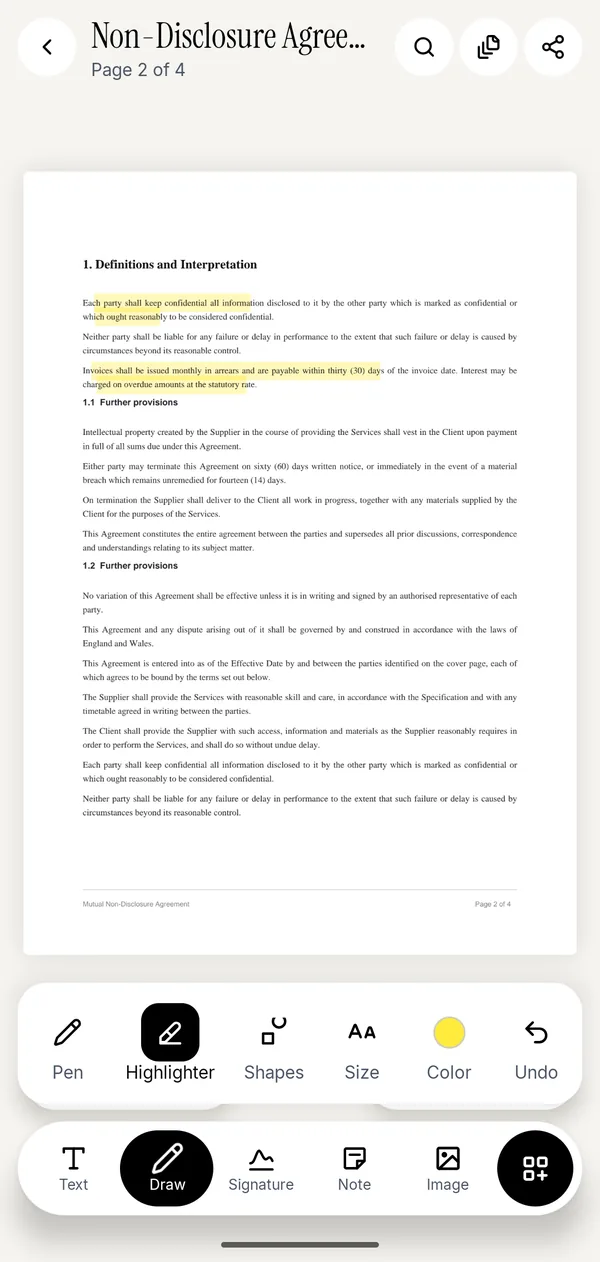
- Open the PDF and tap Draw.
- Tap Highlighter. The strokes it makes are translucent, so the text stays readable underneath.
- Tap Color and pick one. Yellow for "read this", a second colour for "query this" is a habit worth having.
- Swipe along the line. Pinch to zoom in first if the text is small; the stroke follows your finger either way.
- Undo removes the last stroke. Tap it twice for the last two.
Tap Draw again to put the toolbar away, then export from the share icon at the top.
The other markup tools
Pen is for circling a figure, crossing something out or writing in the margin. Set Size before you start: at the thinnest setting it behaves like a fineliner, at the thickest it is a marker.
Shapes gives you a rectangle, an ellipse, a line and an arrow, with an optional fill. An arrow pointing at the clause you are querying is clearer than three sentences of email explaining which clause you mean.
Note drops a sticky note anywhere on the page. Tap the page, type the comment, and it sits there as a small marker the reader taps to open. This is the right tool for "can we change this to 30 days?" because it keeps your comment off the page itself.
Text writes directly on the page in a size and colour you choose, which is what you want for a correction that has to be visible in print.
Image places a picture on the page: a company stamp, a logo, a photo of a damaged item next to the clause about damage.
Highlighting a scan
A scanned page is a picture, so there is no text to select. The highlighter still works, because it draws over the page rather than over the text, but nothing will snap to the line.
Two things make it easier:
- Run Make Searchable (OCR) from Convert & optimize first. It adds a text layer, which does not change the highlighter but does let you search the document and copy from it.
- Zoom in. At 200% a highlighter stroke is steady; at 100% on a 6-inch screen it wanders.
Annotations are not redaction
A highlighter is translucent on purpose, and a filled black rectangle only covers the pixels on screen. Neither removes anything. Anyone can select the text underneath or delete the shape.
If the point is to hide a name, an account number or an address before you send the file, use Redact, which deletes the text as well as covering it. The guide to blacking out text in a PDF explains the difference and why it matters.
Questions people ask
How do I highlight text in a PDF on Android?
Open the PDF in Kyneto PDF, tap Draw, choose Highlighter, pick a colour and swipe along the line. Export the file when you have finished marking it up.
Can I annotate a PDF without an account?
Yes. Kyneto PDF has no accounts and no sign-in. Open the file, mark it up, export it.
Do the highlights survive when I send the file?
Yes. The annotations are written into the exported PDF, so the recipient sees them in any reader.
Can I remove a highlight after exporting?
Not from the exported file. Undo works while you are still marking up. Export a fresh copy from the original if you need a clean version, which is why keeping the original is worth the storage.
Does highlighting work on a scanned document?
Yes, because the highlighter draws over the page rather than selecting text. Running Make Searchable (OCR) first lets you search and copy the text as well.
Can I add a comment that does not cover the text?
Use Note. It drops a small marker on the page and holds your comment inside it, so the page stays readable.
Free to download. No account, nothing uploaded.