
Fill in a PDF form on your phone, offline
To fill in a PDF form on a phone, open it in Kyneto PDF, tap All tools and choose Fill form. The app steps through the fields one at a time, so tap Next to move on, type or pick the value, then Save. Turn on Flatten before saving if you want the answers fixed in place, then export and send it.
Forms arrive as PDFs because PDFs print predictably. They are miserable to fill on a phone because the fields are tiny and the usual advice is "do it on a computer".
Fill a form field by field
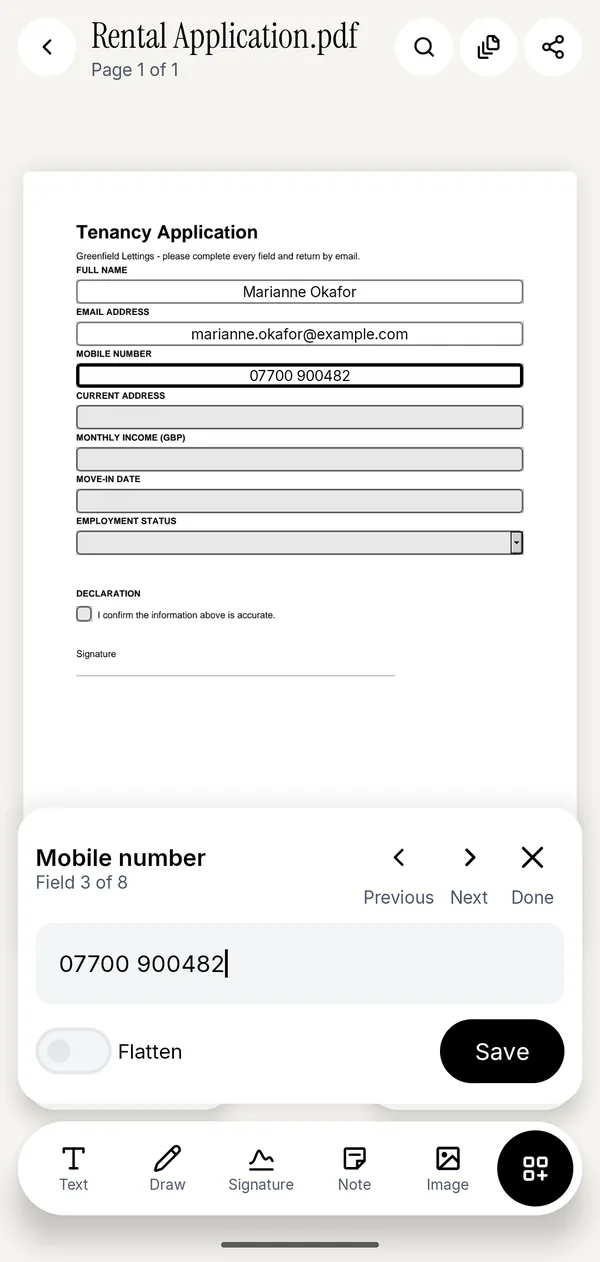
- Open the PDF and tap All tools, then Fill form under Annotate & sign.
- The sheet shows the field name and your position in the form: Field 3 of 8. The field it is on is outlined on the page above.
- Type the value. For a dropdown, pick from the list. For a checkbox, tap to toggle it.
- Tap Next for the following field, or Previous to go back and correct one.
- Tap Save when you are done. Done closes the sheet without leaving the document.
Working through the list beats hunting for boxes by eye, and it is the only reliable way to notice the field hiding below the fold on page three.
What the Flatten switch does
Flatten turns the filled-in values into part of the page. After flattening, the boxes are no longer editable form fields: they are text drawn on the document, the same as if it had been printed and scanned, only sharp.
Use it when:
- The form is going to a landlord, a bank or a government office and you do not want the values altered after you send them.
- The recipient's software mangles form fields, which older readers often do.
- You are about to sign it. A signature on an editable form is worth less than a signature on a flattened one.
Leave it off when the form is a draft, or when somebody else has to complete the rest of it.
When the PDF has no fields at all
Plenty of "forms" are a photograph or a scan of a paper form with no interactive fields in them. Fill form will tell you: This PDF has no form fields. Use the Text tool to type anywhere on the page.
That is the right answer. Text drops a text box wherever you tap, and you set the size and colour. It takes longer than a real form, but it produces a clean, legible result instead of handwriting on a photo.
One case the app cannot help with: XFA forms. These are an Adobe-specific format used by some government and banking PDFs, and they are not ordinary PDF form fields. The app says so plainly rather than silently filling in nothing. XFA forms generally need Adobe's own desktop Reader.
Sign it while you are there
Most forms that need filling also need a signature and a date. Signature draws one with a finger and saves it for next time, so the second form takes seconds. The guide to signing a PDF without printing covers the legal side, including when a drawn signature is not enough.
For the date, use Fill form if there is a date field, Text if there is not.
Why do it on the device
A completed form carries your address, your date of birth, your income or your bank details, often all four. Kyneto PDF fills and flattens on the phone, so none of that is sent anywhere, and there is no account to create. It also means the whole job works with no connection.
Questions people ask
How do I fill in a PDF form on Android?
Open the PDF in Kyneto PDF, tap All tools, choose Fill form, and work through the fields with Next and Previous. Type or pick each value, then tap Save and export the finished form.
Can I fill a PDF form without Adobe Acrobat?
Yes. Kyneto PDF fills standard PDF form fields, including text boxes, checkboxes, radio buttons and dropdowns, with no Adobe account and no sign-up.
How do I stop someone changing my answers?
Turn on Flatten before saving. The values become part of the page and the form fields are gone, so the answers cannot be edited in a PDF reader.
The form has boxes but nothing happens when I tap them
Then they are drawn boxes rather than real form fields. Use the Text tool to type on top of them instead.
Does filling a form upload the document?
No. Kyneto PDF does the whole thing on the phone, so the form and everything you type into it stay on the device.
Can I fill a PDF form on an iPhone?
Yes. Kyneto PDF on iPhone fills form fields the same way, and Apple's Files app fills standard fields too; neither uploads the document. Filling out a PDF form on iPhone compares the two.
Free to download. No account, nothing uploaded.