
Fill out a PDF form on iPhone, with or without fields
Yes, you can fill out a PDF form on iPhone without installing anything. Open the PDF from Files or Mail, tap the AutoFill button, then tap a field and type. If your own card in Contacts is filled in, AutoFill offers your name, address and other details (iOS 17.2 and later). In iOS 26 and later the PDF opens in the Preview app, where the Form Filling button does the same. Kyneto PDF adds a field-by-field walk-through, a Flatten switch that fixes your answers in place, and a clear answer for the forms that have no fields at all.
The built-in way: AutoFill
Apple's steps, from the iPhone User Guide:
- Open the form. If iPhone asks, open it in the Files app and tap Save.
- Tap the AutoFill button, then tap a blank field and type.
- To use your saved details, tap a suggestion from your contact card; "Choose other" fills in another contact, such as a parent or a partner.
- To write where there is no field, tap the Add button and choose Add Text Form Box. To sign, choose Add Signature.
- Share the finished form with Mail, Messages or AirDrop.
In Preview (iOS 26 and later) it is the same idea: open the form, tap the Form Filling button, tap a field, and pick the AutoFill suggestion above the keyboard or type. Apple describes AutoFill as identifying the fields in PDFs and other forms, so it can help even on a form that was never made fillable.
If the form came by email, Apple's tip is to tap the attachment in Mail, open it in Preview, fill it in, then reply to the sender and attach the completed copy.
For a short form with obvious fields, that is all you need.
Where the built-in way gets hard
Built-in form filling has a few gaps that bite on long or official forms:
- Finding every field. On a twelve-field form spread over three pages, it is easy to miss the box below the fold on page two.
- Keeping answers fixed. Filled-in form fields can still be changed by whoever opens the file next, and Apple's guide describes no step for flattening them into the page.
- Forms that will not fill at all. Some government and bank PDFs use XFA, an Adobe format that many readers outside Adobe's own cannot fill.
Fill a form in Kyneto PDF
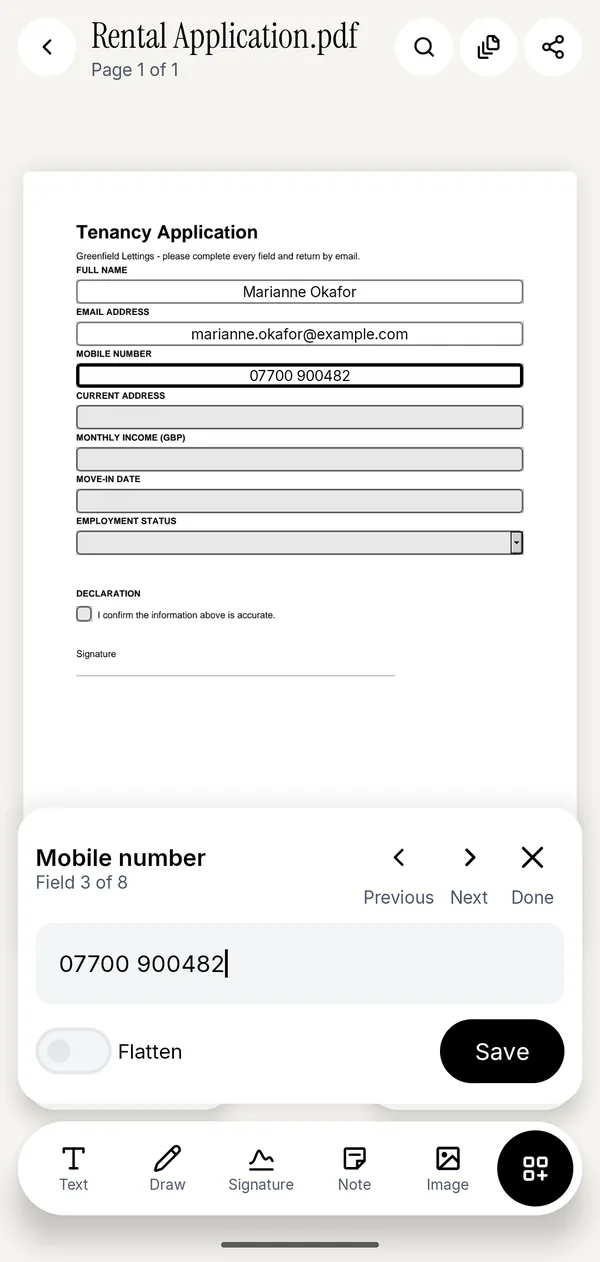
- Open the PDF with Open PDF File, or share it to Kyneto PDF from Files or Mail.
- Tap All tools, then Fill form under Annotate & sign.
- Type or pick a value for the field shown, then tap Next. The sheet tells you where you are: Field 3 of 8.
- Turn on Flatten if the answers should not be changed after you send the form.
- Tap Save, then Share or Save to device.
Text boxes, checkboxes, radio buttons and dropdowns all work. Fields the form marks as required or read-only are labelled, and Previous takes you back to correct one. The field you are on is outlined on the page above the sheet, so you always know which box you are filling.
When the form has no fields
Plenty of "forms" are a scan or a flat PDF with nothing to tap. Kyneto PDF says so plainly: This PDF has no form fields. Use the Text tool to type anywhere on the page.
That is the right tool. Text is on the toolbar at the bottom of the editor: tap where the line is, type, and set the size and colour. Drag it into place afterwards; nudging is easier than aiming. On Apple's side the equivalent is Add Text Form Box.
XFA forms
Some tax, immigration and banking PDFs are XFA forms. They are built for Adobe's own software, and in other readers they often show a "Please wait..." page instead of the form. Kyneto PDF tells you directly: This form is not supported (XFA), so its fields cannot be filled in. The practical fixes are to ask the issuer for a standard PDF version, or to fill it in Adobe Acrobat Reader on a computer.
Sign it, then send it
Most forms want a signature and a date. Fill the date with Fill form if there is a field for it, or with Text if not. Then tap Signature: draw it once with your finger and it is saved for the next form. Markup on iPhone saves signatures for reuse too, so either way the second form is quicker. The guide to signing a PDF on iPhone covers signing a form that came by email.
Flatten before you sign. A signature next to answers that can still be edited is worth less than a signature on a form whose values are fixed.
A completed form carries your address, date of birth and often your income or bank details. Kyneto PDF fills, flattens and signs on the phone, with no account and nothing uploaded. The general guide to filling in a PDF form on a phone goes deeper into Flatten.
Questions people ask
Can I fill out a PDF on iPhone?
Yes. Open it from Files or Mail and tap the AutoFill button, or use the Form Filling button in Preview on iOS 26 and later. Kyneto PDF's Fill form walks through the fields one at a time.
How do I fill out a PDF form on iPhone for free?
AutoFill in Files and Preview is built into iOS. Kyneto PDF is free to download and every tool can be used; the free tier limits how many documents you can export, and a weekly or yearly subscription removes the limit.
What app do I need to fill out a PDF on iPhone?
None for a simple form: Files and Preview fill standard fields. An app helps when you want a field-by-field walk-through, answers locked in with Flatten, and the rest of the job (signing, compressing, removing pages) in one place.
Why can't I type in the boxes on my PDF form?
Either the boxes are drawn on the page rather than real fields, or the form is XFA. For drawn boxes, use Text in Kyneto PDF or Add Text Form Box in Markup. For XFA, ask for a standard PDF or use Adobe Acrobat Reader on a computer.
How do I stop someone changing my answers?
Turn on Flatten in Kyneto PDF's Fill form before saving. The values become part of the page and the fields are gone.
Is the form uploaded when I fill it in?
Not in Kyneto PDF. The form and everything you type stay on the phone, and it works offline.
Free to download. No account, nothing uploaded.