
Edit a PDF on iPhone: what is built in and what is not
To edit a PDF on iPhone without an app, open it from Files. In iOS 26 and later it opens in the Preview app, where Markup adds text, drawings, shapes and a signature, and the page thumbnails let you delete, insert, rotate, move and crop pages. AutoFill fills in forms. What needs an app is the rest: redaction that removes the text, compressing to an exact size, splitting, watermarks, page numbers and removing a password you know. And one edit neither Apple's tools nor Kyneto PDF make: changing the words already in the PDF.
What each tool does
"Edit a PDF" covers a dozen different jobs. This is the honest map, checked against Apple's iPhone User Guide for iOS 26 and iOS 27 on 2026-11-10.
| Job | Without an app | In Kyneto PDF |
|---|---|---|
| Type text on the page | Markup → Add Text | Text |
| Draw, add shapes | Markup | Draw |
| Sign | Markup → Add Signature | Signature |
| Fill in form fields | AutoFill in Files; Form Filling in Preview | Fill form, with Flatten |
| Highlight text | Preview (iOS 26 and later) | Draw → Highlighter |
| Delete, insert, rotate, move pages | Preview thumbnails (iOS 26 and later) | Manage Pages |
| Crop a page | Preview (iOS 26 and later) | Crop pages |
| Make the file smaller | Preview export, Files' Optimize File Size, no target size | Compress PDF, with Target File Size |
| Searchable text on a scan | Preview export's Embed Text switch | Make Searchable (OCR) |
| Add a password | Preview → Lock | Not offered |
| Remove a password you know | Not in Apple's guide | Remove Password |
| Redact | Not in Apple's guide | Redact |
| Split into several files | Not in Apple's guide | Split PDF |
| Watermark, page numbers | Not in Apple's guide | Watermark, Page Numbers |
| Change the existing text | No | No |
If your edit is in the top half of the table, you may not need to install anything. Preview is worth opening first.
Where Markup is in Files
On iOS 26 and later, tapping a PDF in Files opens it in Preview, and the Markup button is in its toolbar. If you prefer the old Quick Look viewer, touch and hold the PDF, tap Open With and choose Preview with Quick Look; Markup is there too. In Mail, tap the attachment and then the Markup button.
Deleting pages
This is the most common edit after signing. In Preview, tap the page count to show thumbnails, touch and hold a page and tap Delete Page. In Kyneto PDF, tap the pages button at the top of the editor to open Manage Pages, select every page you want gone, and delete them in one go. There is a separate guide to deleting pages from a PDF on iPhone with the details.
Edit a PDF in Kyneto PDF
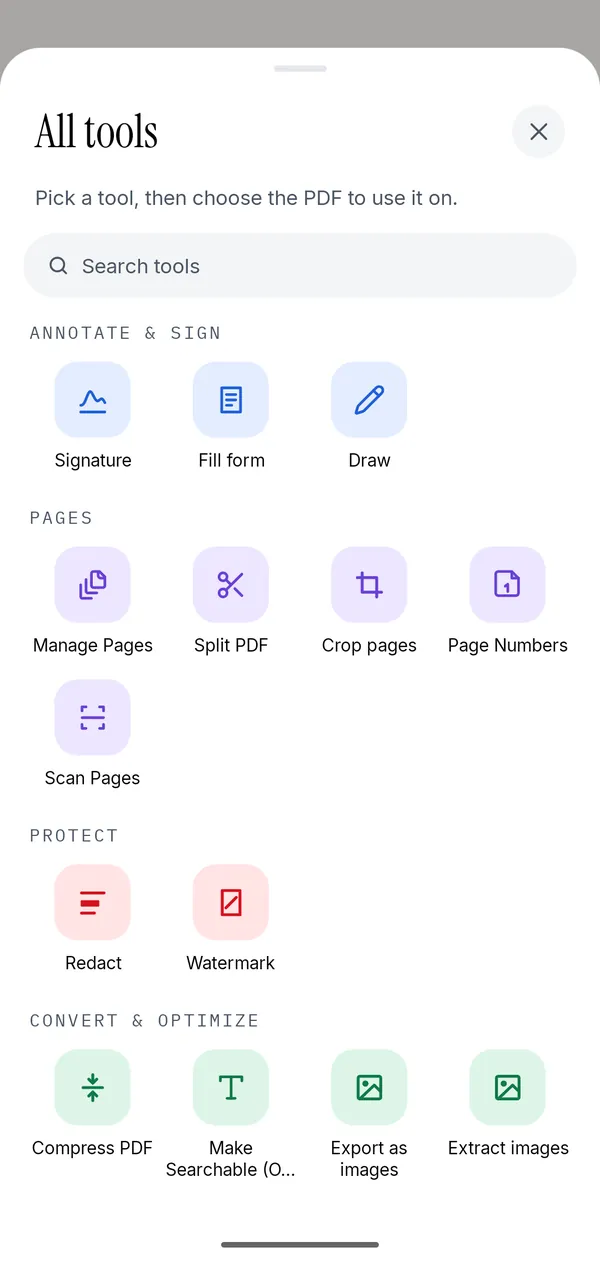
- Open the PDF with Open PDF File, or share it to Kyneto PDF from Files or Mail.
- Use the toolbar at the bottom for Text, Draw, Signature, Note or Image.
- Tap All tools for everything else, grouped under Annotate & sign, Pages, Protect and Convert & optimize.
- Make the change on the page. Pinch to zoom in first if the spot is small.
- Tap Share or Save to device to write the edited copy.
Nothing in that sequence touches a server. There is no account, the document stays on the phone, and it all works offline.
The edit no phone app here makes
Changing the words already in a PDF, a figure in a sentence or a misspelt name, means reflowing the paragraph and matching the embedded font. Apple's guides for Markup and Preview describe adding text on top, not changing the text that is there. Kyneto PDF does not do it either.
The common workaround, a white box over the old text and a text box on top, looks right on screen and is not an edit. The original words are still in the file and can be selected, copied or found by search. If the point was to remove something, that is a job for Redact, which takes the text out of the file rather than covering it.
If you really need the original wording changed, there are three honest options:
- Ask the sender for the source document. It works more often than people expect.
- Use a desktop editor. LibreOffice Draw opens a PDF and edits its text blocks, for free.
- Pay for Adobe Acrobat, whose paid plans edit existing text. The Kyneto PDF and Acrobat comparison lays out which jobs genuinely need it.
For everything else in the table, a phone is enough.
Questions people ask
Can I edit a PDF on iPhone for free?
Yes, for many edits: Markup, AutoFill and Preview are built into iOS. Kyneto PDF is free to download and every tool can be used; the free tier limits how many documents you can export, and a weekly or yearly subscription removes the limit.
Can I edit a PDF on iPhone without an app?
Yes, for text boxes, drawings, signatures, form fields and, from iOS 26, page changes in Preview. Redaction, splitting, watermarks, page numbers, compressing to a set size and removing a known password are not in Apple's guide and need an app.
How do I delete pages from a PDF on iPhone?
In Preview, show the thumbnails, touch and hold the page and tap Delete Page. In Kyneto PDF, open Manage Pages, select the pages and delete them together.
Can I change the existing text in a PDF on iPhone?
Not with Apple's tools or Kyneto PDF. A text box on top is the usual workaround, and it does not remove the words underneath.
Where is Markup in the Files app?
Open the PDF from Files. On iOS 26 and later it opens in Preview, and Markup is in the toolbar; Open With → Preview with Quick Look gives you the older viewer, which has Markup too.
Does editing a PDF in Kyneto PDF upload it?
No. Every tool runs on the phone, with no account and no server.
Free to download. No account, nothing uploaded.