
Edit a PDF on Android without Adobe Acrobat
To edit a PDF on Android without Acrobat, open the file in Kyneto PDF and pick the tool that matches the job: Text to type on the page, Fill form for a PDF that has real form fields, Manage Pages to delete or reorder pages, Signature to sign, Redact to hide a name or an account number. Everything runs on the phone, with no account and nothing uploaded.
One honest caveat first, because it decides whether the rest of this guide is useful to you: no free Android app rewrites the text that is already inside a PDF. Kyneto PDF does not do it either. If you need to change "£4,200" to "£4,600" in a sentence the original author typed, skip to the last section.
Which tool does which job
"Edit a PDF" covers at least seven different jobs, and picking the wrong tool is why people give up.
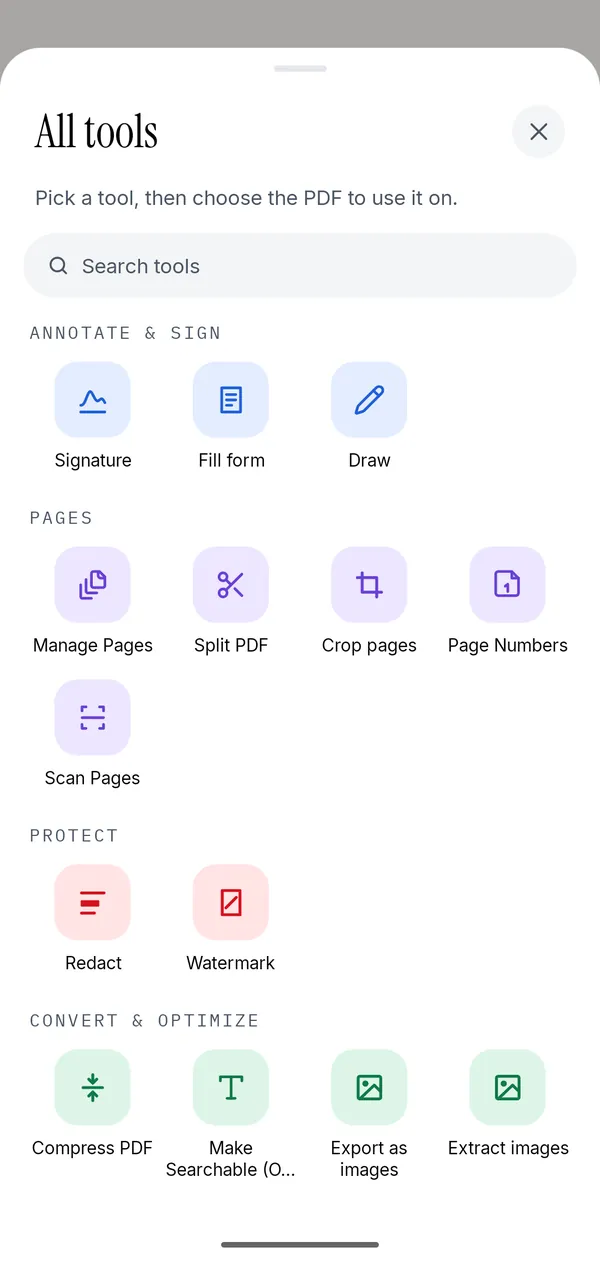
| What you want to change | Tool | Where it is |
|---|---|---|
| Type something on the page | Text | Bottom toolbar of the editor |
| Fill in a form with real fields | Fill form | All tools → Annotate & sign |
| Sign it | Signature | Bottom toolbar |
| Delete, reorder or rotate pages | Manage Pages | All tools → Pages |
| Highlight, draw, add a comment | Draw, Note | Bottom toolbar |
| Hide something permanently | Redact | All tools → Protect |
| Make it smaller | Compress PDF | All tools → Convert & optimize |
Edit a PDF in five steps
- Install Kyneto PDF and tap Open PDF File, or open the PDF from your email or file manager and choose Kyneto PDF.
- Tap All tools at the bottom right, or use one of the five tools already on the toolbar.
- Make the change. Most tools work directly on the page: tap where you want the text box, drag the corner to resize, pinch to zoom in first if the target is small.
- Tap the share icon at the top to export. The edited copy is written on the device.
- Send it from the share sheet, or keep it in the app's file list.
Nothing in that sequence touches a server, so it works in aeroplane mode and on a train with no signal.
Typing on a page that has no form fields
This is the most common real request behind "edit a PDF". Somebody sent a flat scan of a form and you need your name and the date on it.
Use Text. Tap the page where the line is, type, then set the size and colour. Drag it into position afterwards; nudging is easier than aiming.
If tapping a box in the document makes a keyboard appear on its own, the PDF has genuine form fields and Fill form is the better tool: it walks you through the fields one at a time, handles checkboxes and dropdowns, and writes the values into the form itself. There is more detail in filling a PDF form on your phone.
Things people expect to pay for and do not
Acrobat puts several of these behind a subscription on mobile. In Kyneto PDF they are ordinary tools:
- Compressing to a size you type, with a warning before writing if the file cannot get that small.
- Splitting by page range, by every N pages, or by file size.
- Removing a password you already know, so the copy you share opens without a prompt.
- On-device OCR, which adds a searchable text layer to a scan.
- Redaction that removes the text underneath, not just a black rectangle over it.
The app is free to download. The free tier limits how many documents you can export, and a subscription removes that limit. No account is involved either way.
The thing no free mobile app does
Editing the existing text inside a PDF means re-flowing a paragraph, matching an embedded font and re-writing the content stream. Acrobat Pro does it on the desktop, and Acrobat Reader Plus does a limited version of it on mobile for a monthly fee. Free Android apps that advertise it usually mean "you can put a white box over the old text and type on top", which looks fine on screen and falls apart when somebody selects the text.
If you genuinely need the original words changed, three honest options:
- Ask whoever sent it for the source document. This works more often than people expect.
- Use a desktop tool. LibreOffice Draw opens a PDF and lets you edit text blocks, for free.
- Pay Adobe for the mobile tier that includes it.
For everything else — signing, filling, annotating, reordering, redacting, shrinking — a phone is enough.
Questions people ask
Can I edit a PDF on Android for free?
Yes, for most kinds of edit. Kyneto PDF is free to download and lets you add text, sign, fill forms, annotate, reorder and delete pages, redact, watermark and compress on the device. The free tier limits how many documents you can export.
Can I change the existing text in a PDF on my phone?
No, not in Kyneto PDF and not in any free Android app worth trusting. Adding a new text box on top is the usual workaround, and it does not change the text underneath.
Do I need an Adobe account to edit a PDF?
Not with Kyneto PDF. It has no accounts at all, so there is no sign-up and no login. Acrobat's own mobile tools require an Adobe ID for most editing features.
Does editing a PDF on Android upload it anywhere?
In Kyneto PDF, no. The document, its name and its contents stay on the phone. Most web-based editors upload by design, which matters for a payslip or an ID.
Which app opens a password-protected PDF?
Kyneto PDF opens it once you type the password, and can then save a copy with the password removed. It cannot recover a password you do not have.
Free to download. No account, nothing uploaded.