
How to sign a PDF on iPhone, from Files, Mail or an app
To sign a PDF on iPhone, open it in Files or Mail, tap the Markup button, tap the Add button (+), choose Add Signature and sign with your finger. Drag the signature onto the line, resize it, and tap Done. iPhone saves the signature, so the next document takes seconds. No app is needed for that. An app earns its place when the signature is one step in a longer job: filling the form first, dropping pages, or getting the file under an email limit.
The built-in way: Markup
Markup is in Files, Mail, Notes and Photos, and from iOS 26 in the Preview app. To sign with it:
- Open the PDF. In iOS 26 and later, tapping a PDF in Files opens it in Preview; tapping an attachment in Mail opens Mail's own viewer. Both have Markup.
- Tap the Markup button, then the Add button, then Add Signature.
- Sign with your finger. Turning the phone sideways gives you a wider box.
- Drag the signature onto the line and pull one of the dots on its outline to resize it.
After the first time, iPhone offers the saved signature instead of a blank box. You can keep several, labelled as your given name, a nickname or initials, and delete the ones you no longer use. Apple documents all of this in the iPhone User Guide under "Fill out forms, sign documents, and create signatures".
For a one-off rental form, that is the whole job, and it costs nothing.
Signing a PDF that came by email
From the Mail app, the built-in route is short. Tap the attachment, tap Markup, sign, then tap Done. Mail then asks whether to reply to the sender with the signed attachment, start a new message, save it to Files, or discard it. Reply is the quickest sign-and-return there is on a phone.
If the PDF is in Gmail, Outlook or Google Drive, save it to Files first, or use that app's share or Open in option, and sign it from there. Then attach the signed copy to your reply.
The same works with Kyneto PDF: tap the attachment, tap Share, and pick Kyneto PDF. The app is registered as a PDF handler, so it appears in the share sheet like Files does. When you send the result from the app it goes out as a new message, so add the recipient yourself.
Sign a PDF in Kyneto PDF
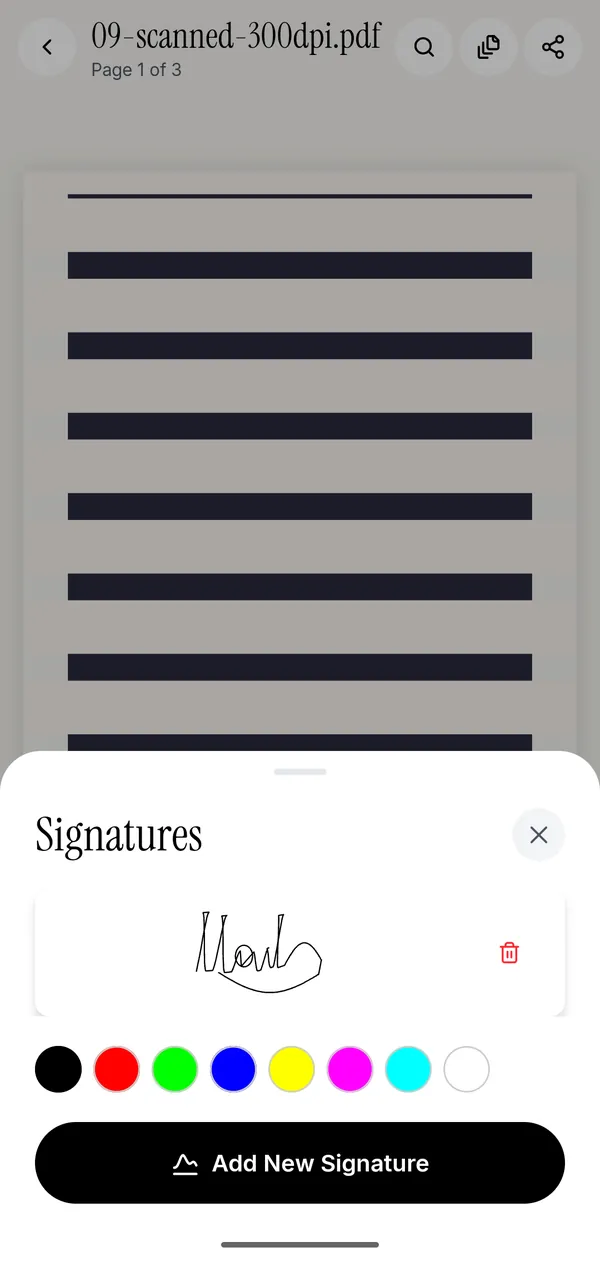
- Open the PDF with Open PDF File, or share it to Kyneto PDF from Files or Mail.
- Tap Signature in the toolbar at the bottom of the editor.
- The first time, tap Add New Signature, draw your name with your finger and tap Save.
- Tap the saved signature to drop it on the page, drag it onto the line and pull a corner to resize it.
- Tap Share to send the signed PDF, or Save to device to keep it in Files.
The signature is written into the PDF as vector strokes rather than a pasted picture, so it stays sharp when someone zooms in or prints it. Your saved signatures stay in the app, on the phone.
Signing several documents
No phone tool signs ten files with one tap: you open each one. What makes a stack quick is a saved signature and a short path from one file to the next.
- Keep two signatures, a full one and your initials, and pick the one each page needs from the Signature sheet.
- Use Recent Files on the home screen to jump to the next document without browsing through Files again.
- If a contract wants initials on every page, place them page by page and check the last page before you export.
Where Markup stops and an app helps
Markup's job is drawing on the page. The jobs around a signature are where an app helps:
- A form to fill first. Fill form steps through the fields one at a time, and Flatten fixes the answers so they cannot be edited after you sign.
- A file too big to send back. Compress PDF has a Target File Size field for the limit the mail server or portal sets; there is more on that in compressing a PDF on iPhone.
- Pages nobody needs. Manage Pages deletes, reorders and rotates pages before you sign.
- Something to hide. Redact removes the text under the black box instead of covering it.
- A password on the file. Open it with the password, and Remove Password shares a copy that opens without one.
All of that happens on the phone. There is no account, nothing is uploaded, and it works with no signal.
Is a finger signature legally binding?
For everyday agreements, generally yes. A drawn signature is a simple electronic signature, which the ESIGN Act in the United States and eIDAS in the EU both recognise. It is not a certificate-based or qualified signature, and Kyneto PDF does not create those. If a form specifically asks for one, use the service the issuer points you to. The general guide to signing without printing goes into this in more detail.
Questions people ask
How do I sign a PDF on iPhone for free?
Use Markup, which is built into iOS: open the PDF in Files or Mail, tap Markup, then Add, then Add Signature. Kyneto PDF is free to download and every tool can be used; the free tier limits how many documents you can export, and a weekly or yearly subscription removes the limit.
How do I sign a PDF with my finger on iPhone?
Choose Add Signature in Markup, or Signature in Kyneto PDF, and draw on the screen with one finger. Turning the phone sideways gives you more room, and the second attempt is usually the better one.
Can I sign a PDF from an email on iPhone?
Yes. In Mail, tap the attachment, tap Markup, sign and tap Done, then choose to reply to the sender. From Gmail or another mail app, save the PDF to Files or share it to Kyneto PDF, sign it, and attach the signed copy.
Does iPhone save my signature?
Yes. Markup saves every signature you create and offers it next time; you can keep several and delete them. Kyneto PDF keeps its own saved signatures on the device.
Are the steps different on iPhone 17?
No. The steps depend on the iOS version, not the model. From iOS 26, a PDF tapped in Files opens in the Preview app, which has the same Markup tools.
Does signing in Kyneto PDF upload the document?
No. The app signs, saves and exports on the phone, with no account and no server involved.
Free to download. No account, nothing uploaded.