
How to add text to a PDF on iPhone
Yes, you can add text to a PDF on an iPhone with the tools Apple ships: open the PDF in Files or Preview, tap the Markup button, tap the Add button and choose Add Text, then type. In Kyneto PDF, tap Text in the bottom toolbar, tap the page and type; drag the box into place and use its handles to resize or rotate it. Neither changes the words that are already printed in the PDF; both add new text on top.
If the PDF is a form with boxes that react when you tap them, skip both and use form filling, which is covered below.
The built-in way: a Markup text box
Markup is built into Files, Mail and, since iOS 26, the Preview app. Apple's steps:
- Open the PDF and tap the Markup button.
- Tap the Add button in the Markup toolbar, then Add Text.
- Tap the text box and type.
- Use the tools at the bottom to change the font, size, alignment, style or colour.
- Tap outside the box when you are done.
The More button next to the box lets you duplicate or delete it. For a line or two on a flat page, this is all most people need, and it costs nothing.
Forms: let the fields do the work
If the PDF has real form fields, Preview handles them better than a text box. Tap the Form Filling button, tap a field and type, or tap the AutoFill suggestion above the keyboard to pull your name, address and phone number from your contact card. For lines that have no field, the Add button offers a text form box you can drag into position. Our guide to filling in a PDF form on your phone covers checkboxes, XFA forms and flattening.
Add text with Kyneto PDF
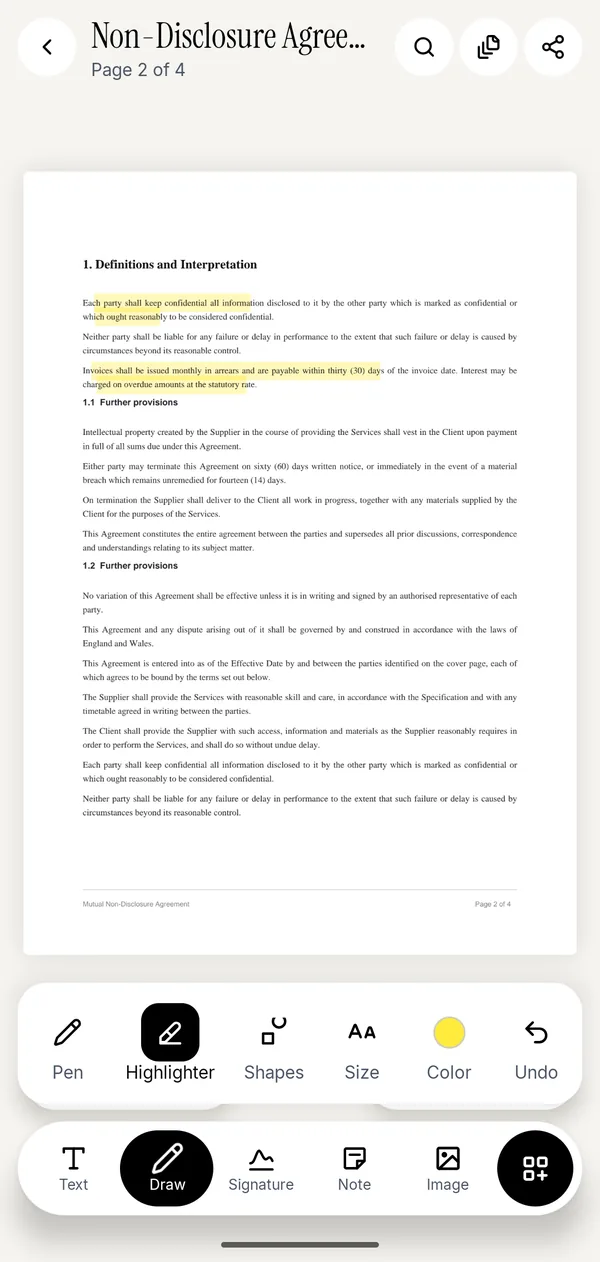
- Open the PDF in Kyneto PDF with Open PDF File, or share it from Files or Mail to the app.
- Tap Text in the bottom toolbar.
- Tap the page where the text should go and type it.
- Drag the box into position; use the handles to resize or rotate it.
- Set Size and Color, and turn on Bold, Italic or Underline if you need them.
- Tap the share icon and choose Save to device or Share.
Pinch to zoom in first when the gap you are aiming for is small. Placing the box roughly and then dragging it is easier than trying to tap exactly on the line.
When you export, the text is drawn into the page itself rather than left as a loose annotation, so it looks the same in every PDF reader and nobody can accidentally drag it off the line.
If you open Fill form and the app reports "This PDF has no form fields. Use the Text tool to type anywhere on the page.", that is your cue: the form is a flat scan, and Text is the right tool.
Two other tools that add something to the page
Note adds a sticky note: tap the page where it belongs and type. It is saved as a standard PDF comment, so other PDF readers show it as a comment too. Use it for remarks to the reader, not for content that has to be printed.
Image places a picture on the page, such as a company stamp, a logo or a photographed initial. Move it, resize it and rotate it like a text box. A large camera photo is scaled down to the size you placed it at, so it does not bloat the file.
For a signature, use Signature, which saves the ones you draw for reuse. Apple's Markup also keeps your signatures for next time, so either works.
What none of these tools do
None of them edit the text that is already in the PDF. Apple's Markup and Preview guides describe adding text boxes and annotations, not rewriting existing words, and Kyneto PDF cannot change existing text either. If a figure in a sentence is wrong, the honest options are to ask the sender for the source document, or to use a desktop editor that rewrites PDF text. Editing a PDF on iPhone sorts the edits a phone can make from the ones it cannot.
The tempting shortcut is to put a white box over the old words and type new ones on top. It looks right on screen, but the old text is still in the file, and anyone who selects or searches it will find it. If the old text is sensitive, redact it properly before you add anything.
Questions people ask
Can you add text to a PDF on iPhone?
Yes. Markup in Files or Preview adds a text box from the Add menu, and Kyneto PDF's Text tool adds text you can move, resize, rotate and style. Both add new text; neither edits existing text.
How do I add text to a PDF on iPhone for free?
Use Markup: open the PDF in Files or Preview, tap Markup, tap Add, then Add Text. Kyneto PDF is free to download and the Text tool can be used straight away; the free tier limits how many documents you can export, and a weekly or yearly subscription removes that limit.
How do I add a text box to a PDF on iPhone?
In Markup, tap the Add button and choose Add Text, then drag the box where you want it. In Kyneto PDF, tap Text and tap the page where the box should go.
Can I change the existing text in a PDF on iPhone?
Not with Apple's tools and not with Kyneto PDF. Covering old text with a white box and typing over it leaves the original words in the file.
Will the text I add show up in other PDF apps?
Yes. Kyneto PDF draws the text into the page when you export, so every reader shows it the same way.
Free to download. No account, nothing uploaded.